I Was Tired of Re-explaining Context Every Session, So I Automated Everything
March 2026 · Lazy Developer EP.01
On this page (8)
March 2026 · Lazy Developer EP.01
When you’re vibe coding, you end up opening new Claude sessions multiple times a day. The problem is that every time you open a new session, Claude remembers nothing. What project you’re working on, what the folder structure looks like, how far you’ve gotten — you have to explain it all from scratch. At first I just dealt with it. But once I was juggling two projects and opening sessions ten times a day, I realized I was spending more time explaining than actually coding. I did this manually for two months before automating the whole thing. Here’s how.
Lazy Developer — Automate Everything
How It Got This Bad
Claude in a new session is a complete stranger. The code you spent three hours pair-programming yesterday, the naming conventions you agreed on, the memo that said “let’s refactor this function later” — all gone. So I had to type this out every single time.
Here’s the project I’m working on
The folder structure looks like this
Yesterday I got up to here
Today I want to continue this…
If I rushed the explanation, Claude went in the wrong direction. The three most common patterns: first, writing a new utility function without knowing one already existed — instant duplication. Second, naming API endpoints differently from the established convention — requiring a full rename later. Third, not knowing about yesterday’s decision to change an approach and reimplementing it the old way. Doing it properly meant losing 5 to 10 minutes every time, and accurately conveying the project state took a wall of text.
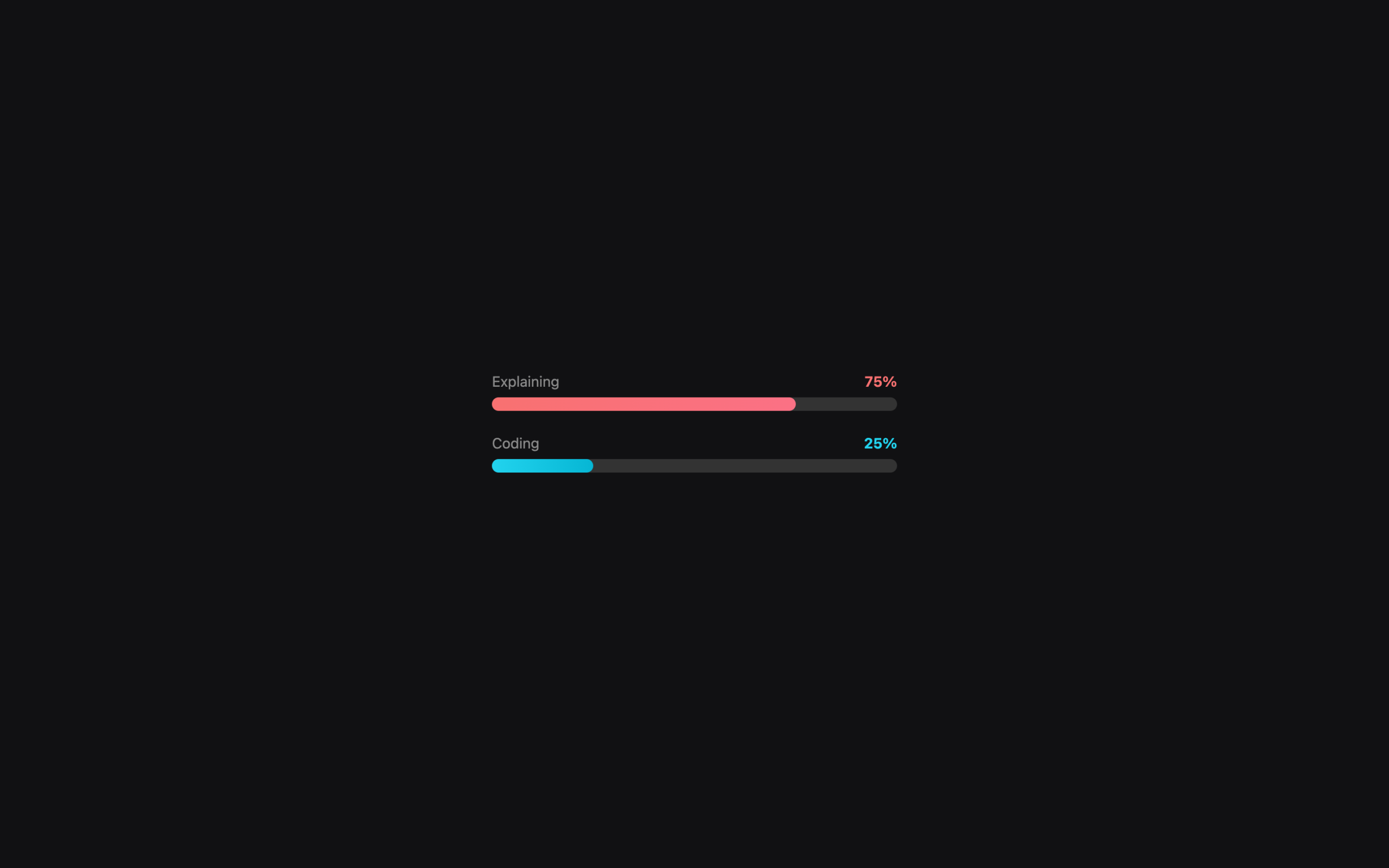
I just lived with it at first. One explanation per session seemed fine. But ten new sessions a day means ten explanations. Two projects means twenty. You open new sessions for all kinds of reasons — hitting the token limit, context getting tangled while working on a different feature, or simply restarting your computer. It adds up, and one day you realize a significant chunk of your day is going to explanations alone.
CLAUDE.md Solved Half the Problem
There’s a file that addresses this. If you create a file called CLAUDE.md in your project root, Claude reads it automatically when starting a session. Write your project description, folder structure, and current progress here, and you don’t have to explain it every time. The context is already loaded the moment you open a session.
The CLAUDE.md structure I actually use looks roughly like this. A one- or two-line project overview, a folder structure tree, current progress, rules to follow, and next steps.
React + TypeScript dashboard. Next.js 14 App Router.
## Folder Structure
src/app/ → Pages (App Router)
src/components/ → Shared components
src/lib/ → Utils, API clients
## Current Progress
– Login/signup complete
– Dashboard layout complete
– Data fetching integration (in progress)
## Rules
– API response types defined in src/types/api.ts
– Component names in PascalCase
– No direct fetch — only through lib/api.ts
## Next Steps
1. Finish UserProfile component
2. Implement real-time data updates
The difference was noticeable right away. Even in a new session, Claude already knew the project. I could jump straight into questions like “Is there an existing function in src/lib/api.ts I should use?” without needing to ask “Where did we leave off yesterday?”
But it was only a half-solution. Because I still had to maintain the file myself. At the end of every session, I had to open it and write what I did today, what to do tomorrow. Skip that, and CLAUDE.md would be stuck a week behind — basically handing Claude an outdated map. I’d solved one annoyance only to create another. When you’re deep in coding, updating CLAUDE.md naturally gets pushed to the bottom of the list. A few days later, the file had drifted from reality.
Three Routines I Ran by Hand Every Day
That’s how three daily routines solidified. They couldn’t be skipped, and the overhead was more stressful than I expected.
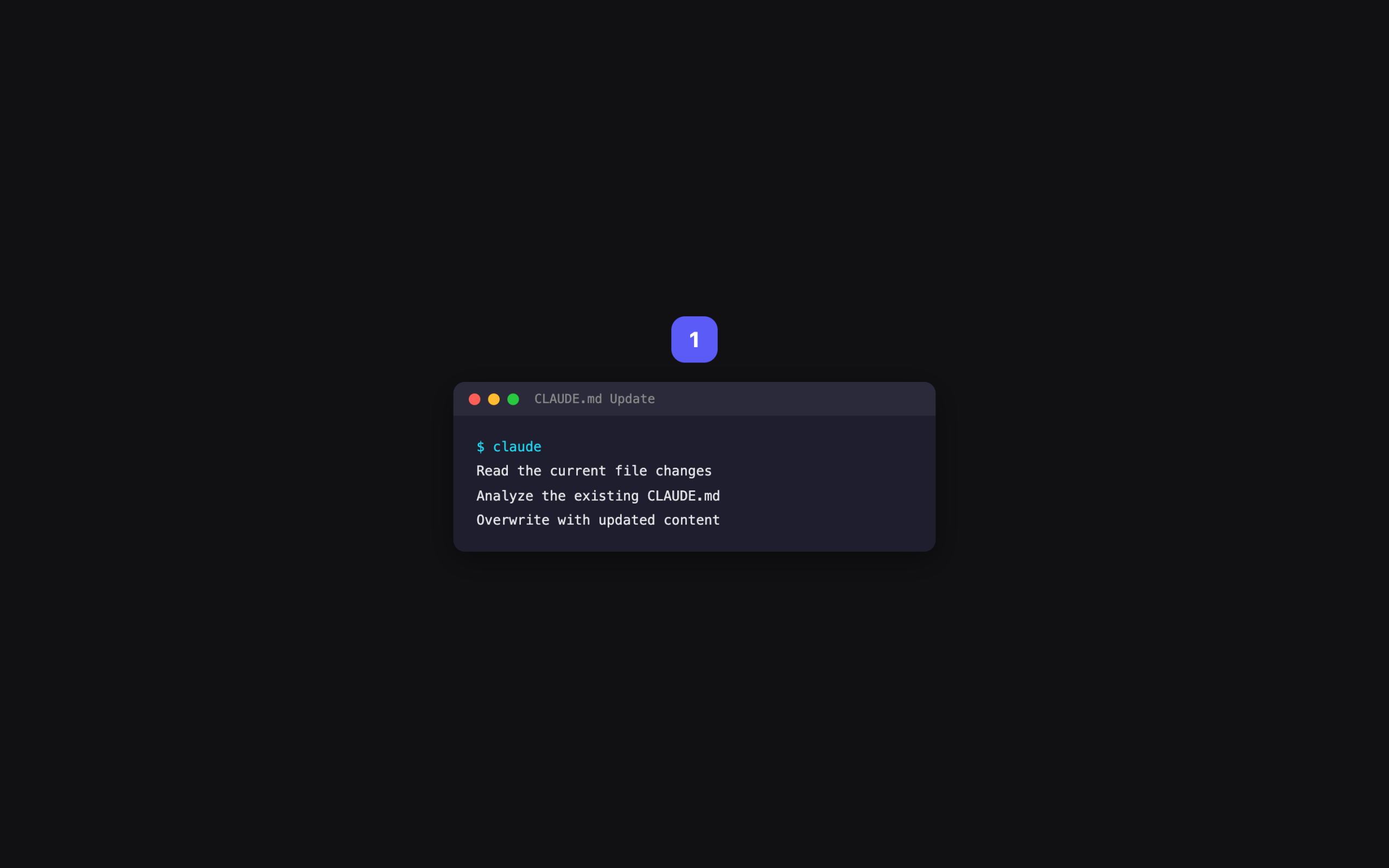
First: updating CLAUDE.md. Analyzing file changes and overwriting CLAUDE.md with what changed that day. If I coded until late and fell asleep, the next morning CLAUDE.md was still stuck at last evening’s state. Open a session and Claude would try to redo work that was already done. Skip the update and Claude codes with stale info — then fixing that takes even longer.
Second: organizing today’s tasks. Reading git log and analyzing CLAUDE.md to figure out what to work on today, then writing it in Apple Notes. Without this, I’d spend 30 minutes every morning staring at the screen thinking “what should I do today?” It sounds trivial, but sitting in front of a blank screen every morning trying to recall where you left off — that fatigue compounds. Asking Claude “what did I do yesterday?” doesn’t help either, because Claude has no memory.
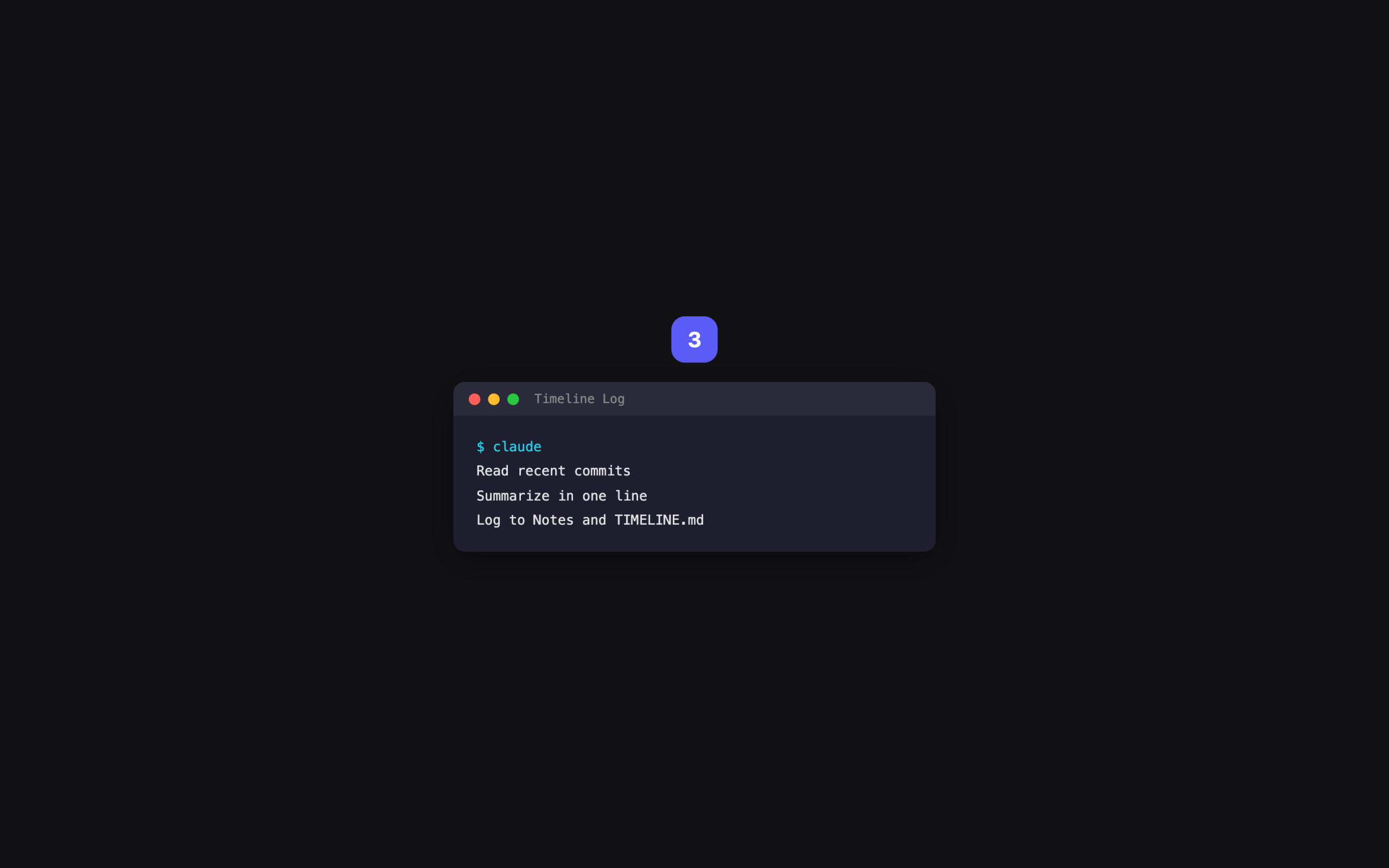
Third: timeline logging. Summarizing recent commits into one-liners and logging them in TIMELINE.md. This was for later when I’d need to look back and ask “what did I do on this project last month?” Without it, I’d have to dig through individual commit messages — which are written for developers and hard to parse without context. Understanding a month’s worth took 20 minutes each time.
I had prompts ready for all three. One button press each. But I still had to run them manually every day, and forgetting meant that day’s record simply didn’t exist. Missing two or three times a week meant CLAUDE.md went stale again and gaps appeared in the timeline. This went on for two months. Some days I’d spend 30 minutes on routines before writing a single line of code.
Offloaded Everything to Cowork Schedules
Then Cowork added a scheduling feature — it runs prompts automatically at set times. The moment I saw it, I moved all two months of manual routines over.
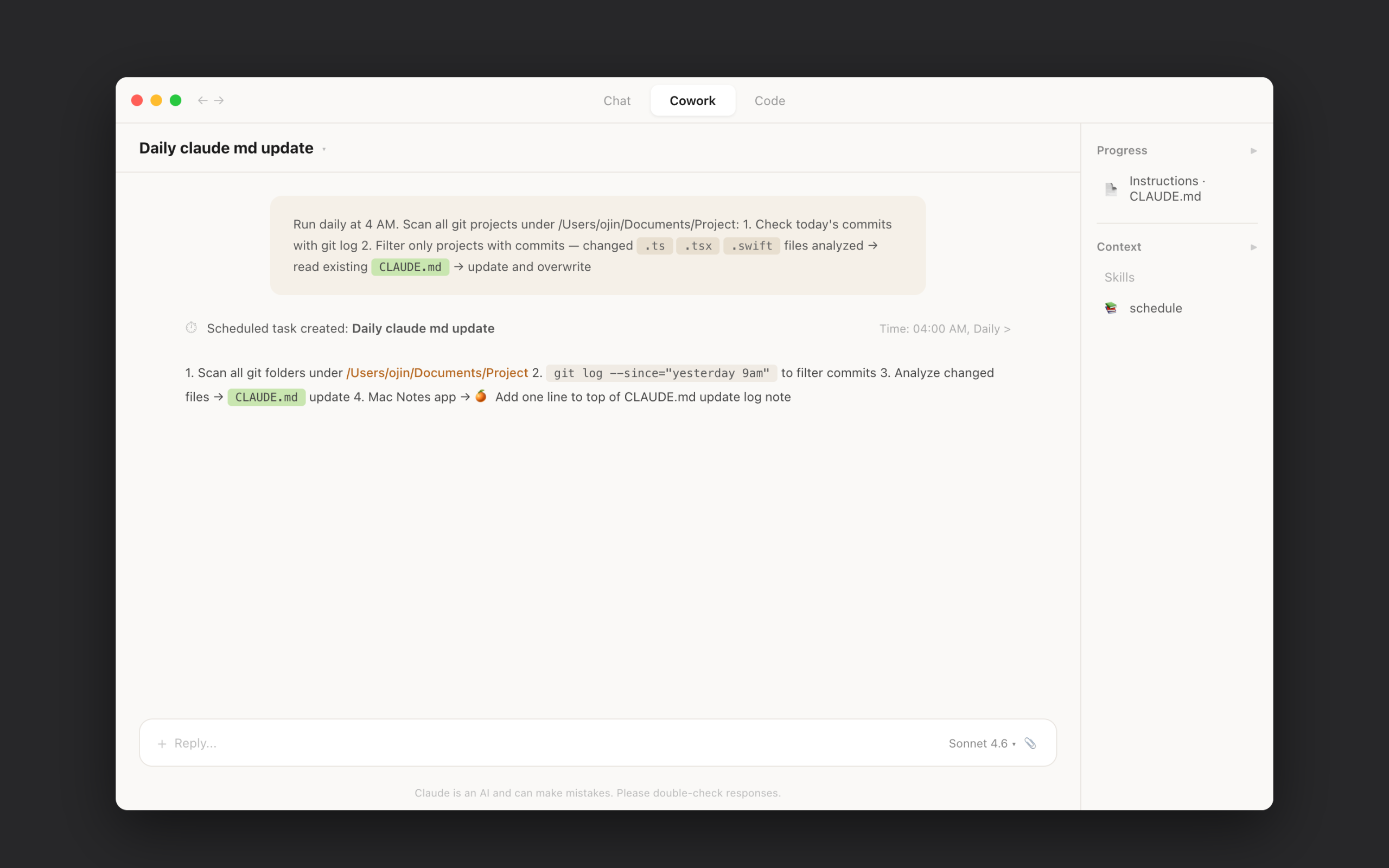
4 AM: automatic CLAUDE.md update. I picked 4 AM for a reason. I usually code in the evenings and wrap up around midnight. By 4 AM, all changes are committed. While I’m sleeping, it reads every file changed that day and overwrites CLAUDE.md. When I wake up, yesterday’s work is already reflected. Open a session and it’s “you got this far yesterday, here’s what to do today.”
Read the project’s file changes
Analyze the existing CLAUDE.md
Overwrite with the updated content
9 AM: automatic daily task list. 9 AM is when I’m usually having coffee and thinking about the day. Right on schedule, it reads the updated CLAUDE.md and git log, then writes today’s tasks in Apple Notes. By the time I’m done with coffee, it’s already there. Something like “API connection finished yesterday, so today handle error states and loading UI” — and the morning decision-making time dropped to nearly zero.
Run git log and collect recent commits
Read CLAUDE.md
Organize today’s tasks and write to Notes
Manual trigger: timeline logging. This one isn’t on a schedule — I run it after commits, only when needed. After a deploy or completing a major feature, one button press logs a one-liner to TIMELINE.md. Switching from daily to on-demand actually made the log cleaner.
Read recent commits
Summarize in one line
Log to Notes and TIMELINE.md
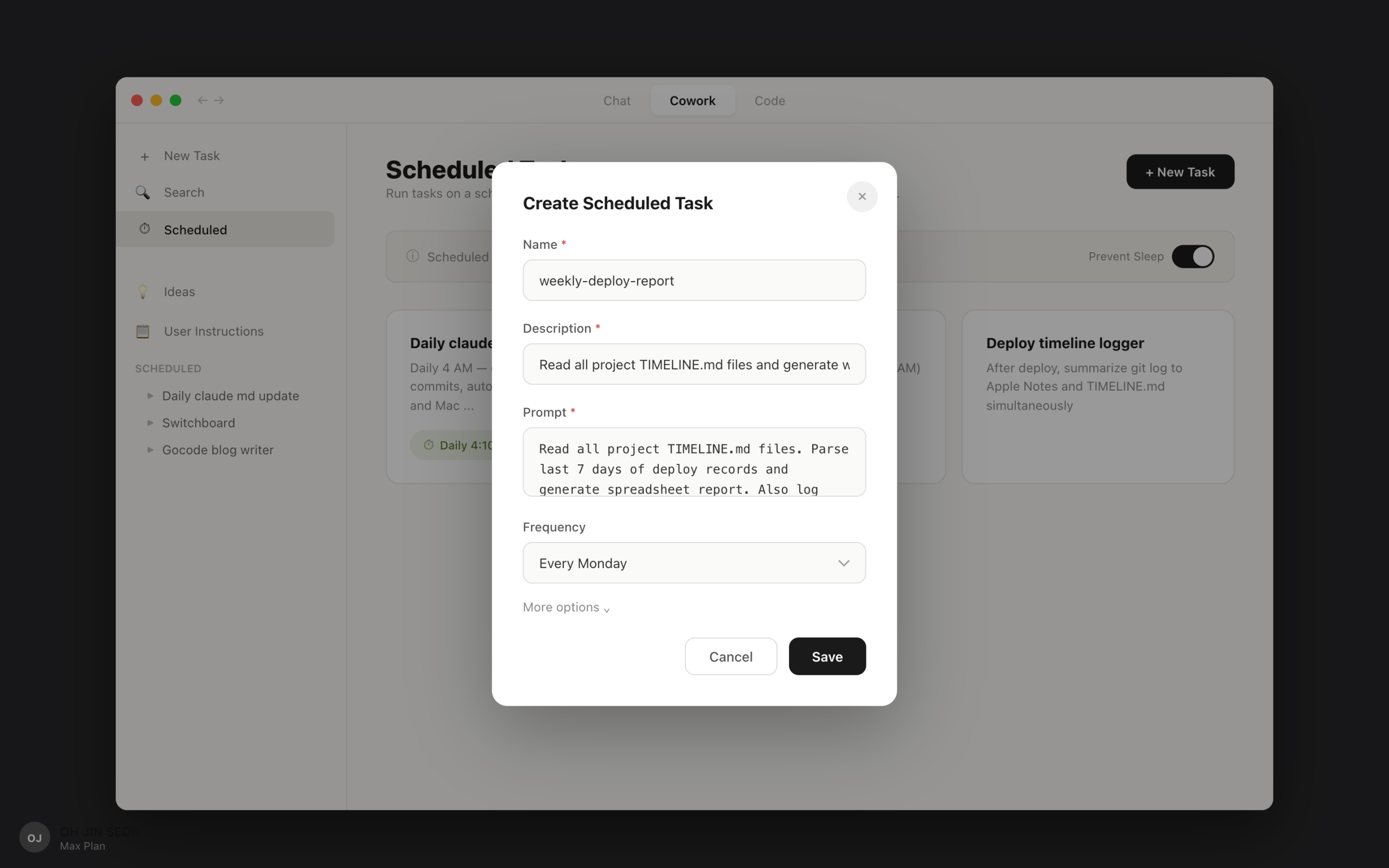
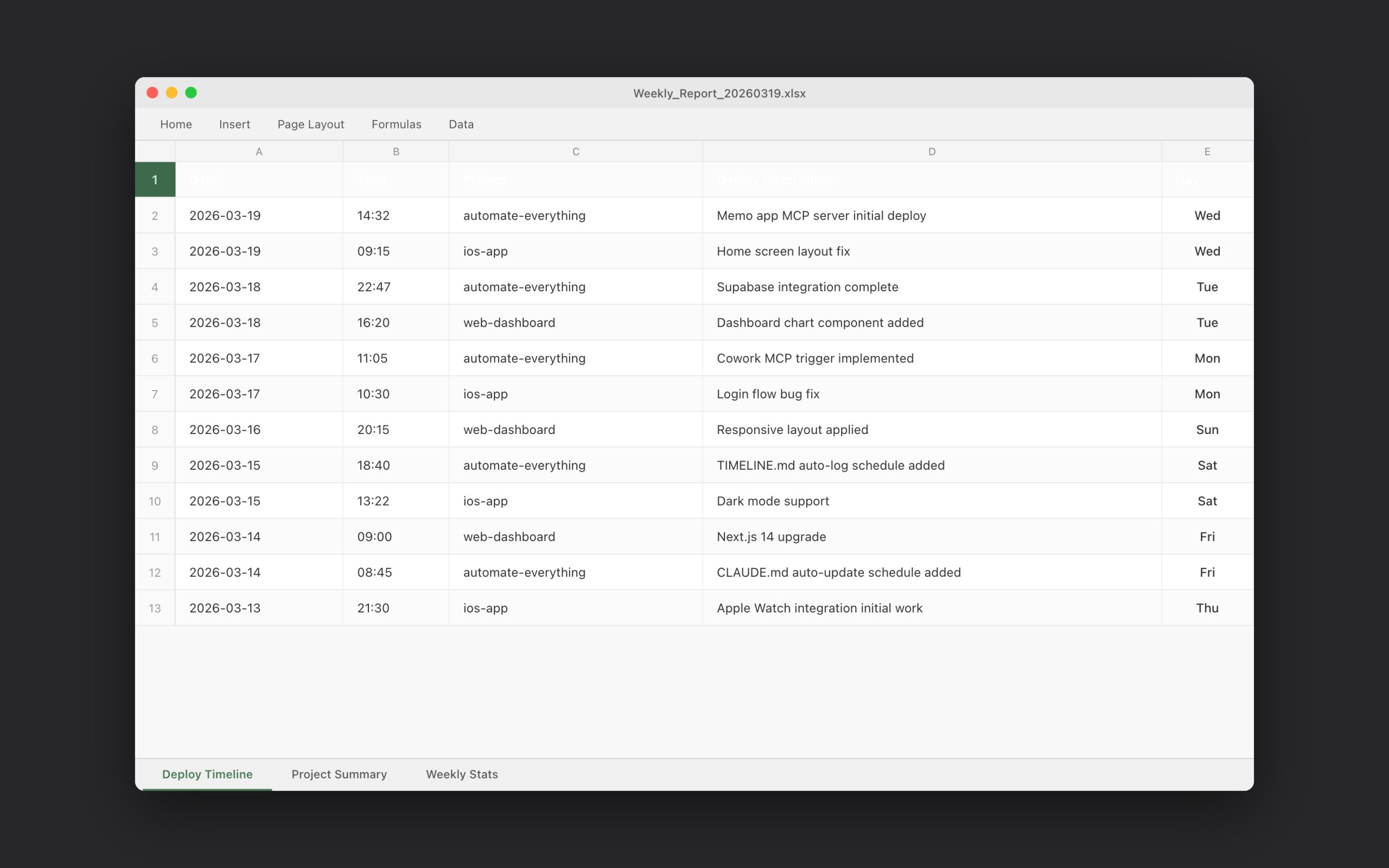
Every Monday at 8 AM: weekly deploy report. Once TIMELINE.md accumulates per project, that’s automatable too. Monday morning at 8 AM, it reads every project’s TIMELINE.md, parses the last 7 days of deploy records, and generates a spreadsheet. How many deploys per project, what went out on which day — all in one view. Before my first task on Monday, the previous week’s summary is already in my folder.
Read TIMELINE.md from all projects
Parse deploy records from the last 7 days
Generate a spreadsheet report and save
Also log the summary to Apple Notes
How to Set It Up
Setting up Cowork schedules isn’t complicated. Open Cowork, create a new schedule, enter your prompt content and execution time. The key is writing specific prompts. A one-liner like “update CLAUDE.md” is far less reliable than specifying which files to read, what format to use, and where to save the output.
Specify the file paths to read. Give examples of the desired format. Be explicit about where to save (file path or app name). Adding a fallback for failures makes it even more stable.
Once set up, you rarely need to touch it again. Check the first few days to make sure the prompts run correctly. If the output looks right, just leave it. You don’t even need to be awake when the schedule runs.
What the Output Actually Looks Like
The biggest change after automating was mornings. Before, opening CLAUDE.md, checking git log, and organizing today’s tasks took 20 to 30 minutes before I could start coding. Now, today’s tasks are already in my Notes app, and CLAUDE.md was updated while I slept. I can jump straight into coding the moment I open a session.
Here’s what the auto-updated CLAUDE.md from 4 AM looks like.
## Recent Changes
– components/Header.tsx modified (added mobile responsiveness)
– api/routes.ts added (user profile endpoint)
– lib/auth.ts refactored (separated token refresh logic)
## Current Progress
Login flow complete. User profile API connection in progress.
## Next Steps
1. Finish login flow (add error handling)
2. API connection testing
3. Loading state UI
Having this file up to date every morning makes a bigger difference than you’d expect. Ask Claude what to work on today and it reads the file and prioritizes instantly. “Auth.ts refactoring finished yesterday, so let’s start with API connection testing, then move to error handling.”
The auto-generated spreadsheet report on Monday mornings showed how many deploys happened per project the previous week, broken down by date. Building that by hand would take 30 minutes, every single Monday. Now it takes zero.
Wrapping Up
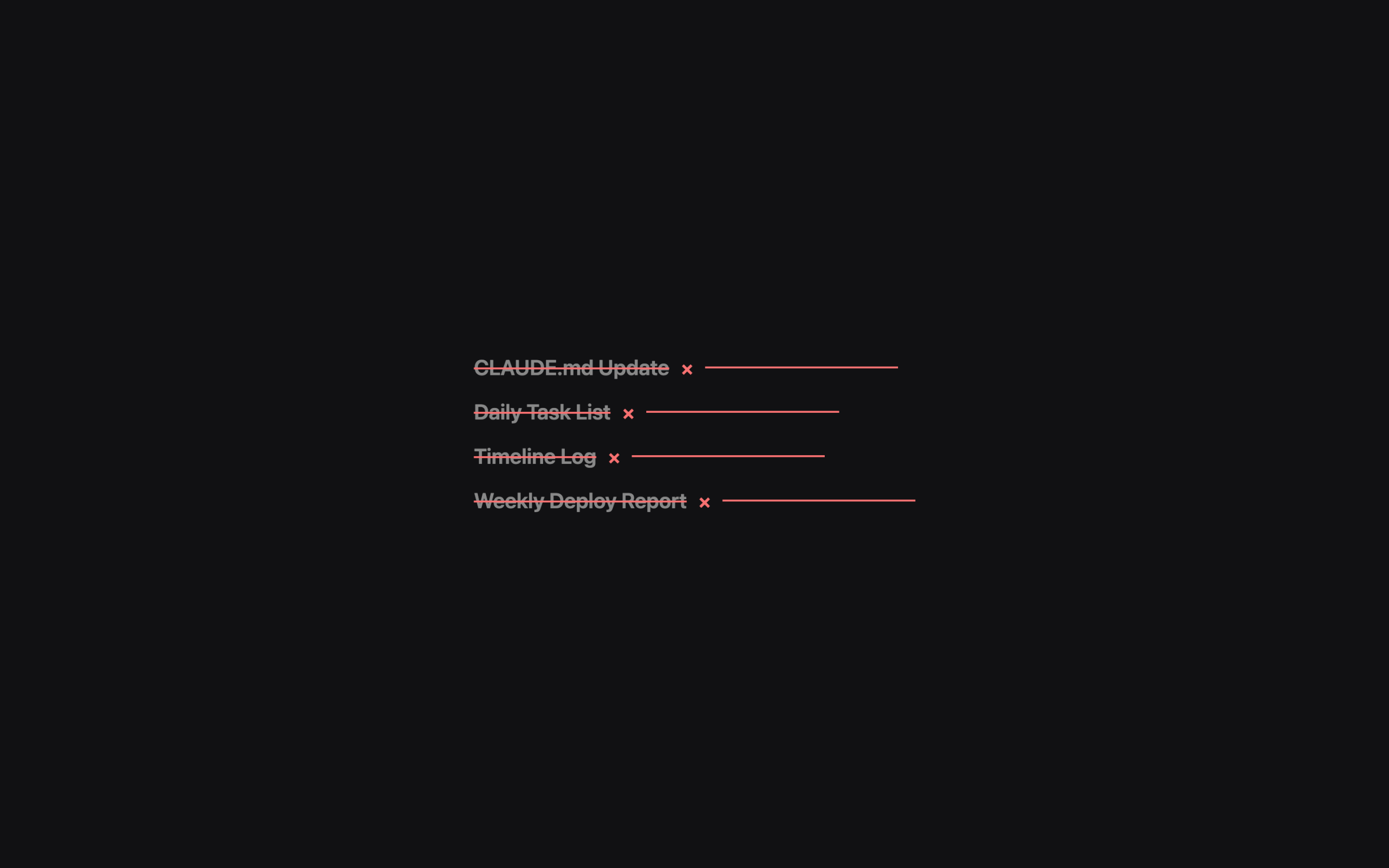
Setting up the schedules took one hour. After that, three daily manual routines and a weekly report task disappeared. These were things I’d been doing for two months straight.
The biggest difference before and after automation was how I started my day. Before, sitting down at my computer meant running routines first. Only after the routines finished could I figure out what to do, and only then could I start actual work. Now I sit down and open my editor immediately. It seems like a small difference, but when it repeats every day, it feels different. Turning on my computer in the morning feels a little lighter — that’s the best way to put it.
Once you automate one thing, you start noticing the next annoyance. I’ve knocked out CLAUDE.md, daily tasks, timeline, and reports — and now even opening the Notes app feels tedious, so I’m hunting for the next target. When something gets annoying, automate it.
Context management automation for vibe coding — how to keep information from mixing up across sessions when you’re running multiple projects at once.
Prefer video? → Watch on YouTube
Lazy Developer · Automate Everything · EP.01