AI Trends8 min
Claude Cowork Guide — The Era of Delegating Work to AI, Here’s How to Start
Complete Claude Cowork beginner's guide. From installation to folder setup to your first task — step by step. Includes ChatGPT comparison, real hands-on review, and 5 practical tips.
On this page (12)
- What Is Claude Cowork, Briefly
- What You Need Before Starting
- Step 1: Switch to Cowork Mode
- Step 2: Connect a Working Folder
- Step 3: Try Your First Task
- Step 4: Monitor the Work in Progress
- Pros vs Cons from Real Use
- 5 Tips I Learned from Using It
- How It Compares to ChatGPT
- FAQ
- What to Do After Reading This
- Related
March 7, 2026 · AI Usage Guide
“ChatGPT answers when you ask. But Claude Cowork just does the work when you tell it to.” — Honest first impression from day oneWhat you’ll learn from this post
What Is Claude Cowork, Briefly
Claude is originally a chat AI like ChatGPT. You ask questions, it answers. Cowork takes it one step further. It’s not “chat mode” — it’s “work mode.” Request a deliverable from the AI, and it creates its own plan. It reads files, runs code, and even creates documents. From personal experience, if ChatGPT is a “smart search engine,” Claude Cowork feels closer to an “actual working colleague.”One-liner: Cowork = Tell Claude “do this,” and it actually does it
What You Need Before Starting
You need three things to use Cowork.1. Claude Paid Subscription
Cowork isn’t available on the free plan. A paid subscription is required.| Plan | Price | Cowork Access | Notes |
|---|---|---|---|
| Free | Free | No | Chat only |
| Pro | $20/month | Yes | Usage limits apply |
| Max 5x | $100/month | Yes | 5x usage + priority access |
| Max 20x | $200/month | Yes | 20x usage + highest priority |
2. Claude Desktop App (macOS or Windows)
Cowork doesn’t work in web browsers. You need the desktop app. The web version (claude.ai) only supports regular chat — there’s no Cowork tab at all. Download link: claude.ai/download
3. Choose a Working Folder
The core of Cowork is direct access to your local files. When you start, you select a working folder, and Claude can read and write files inside it.Step 1: Switch to Cowork Mode
When you open the app, you’ll see mode selection at the top. Three options: “Chat”, “Cowork”, and “Code.” Click “Cowork” in the middle to switch. Chat is for regular conversation, Code is for developers. What we want is Cowork in the middle.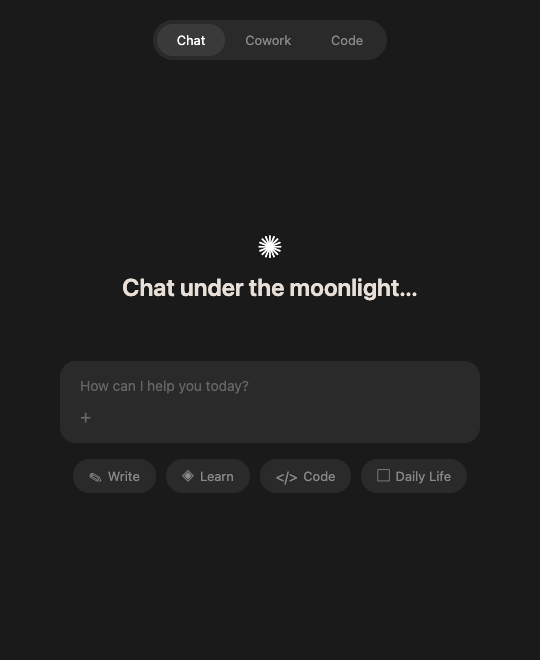
One-liner: Click the “Cowork” tab at the top — done. No complicated setup.
Step 2: Connect a Working Folder
When you first start Cowork, it asks you to select a folder. Once selected, Claude can see all files in that folder. For example, if you select a “Projects” folder on your desktop, Claude can read all documents, images, and data files inside it. Important note. Avoid folders with sensitive files. We recommend creating a dedicated folder with only the files needed for the task.Step 3: Try Your First Task
Now it’s time to actually put it to work. Just describe the result you want in the input field.Example 1: Organize Screenshots
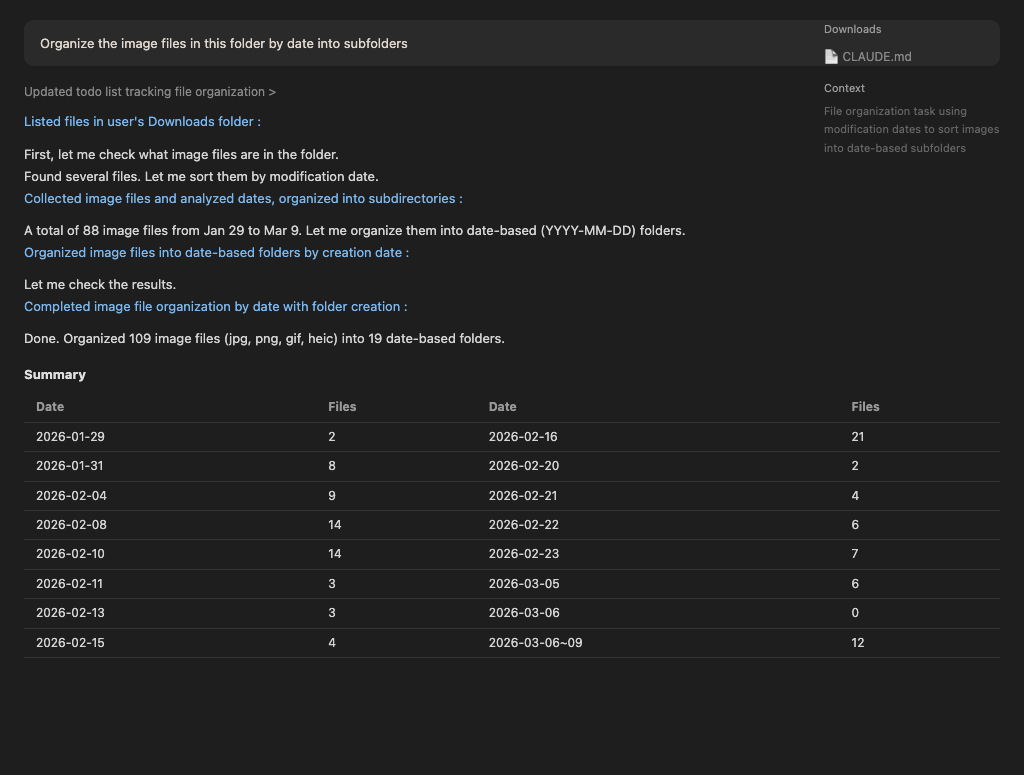
“Organize the screenshots in this folder by date into subfolders”
When you enter this, Claude works in this order:
1. Scans all image files in the folder
2. Reads dates from filenames or metadata
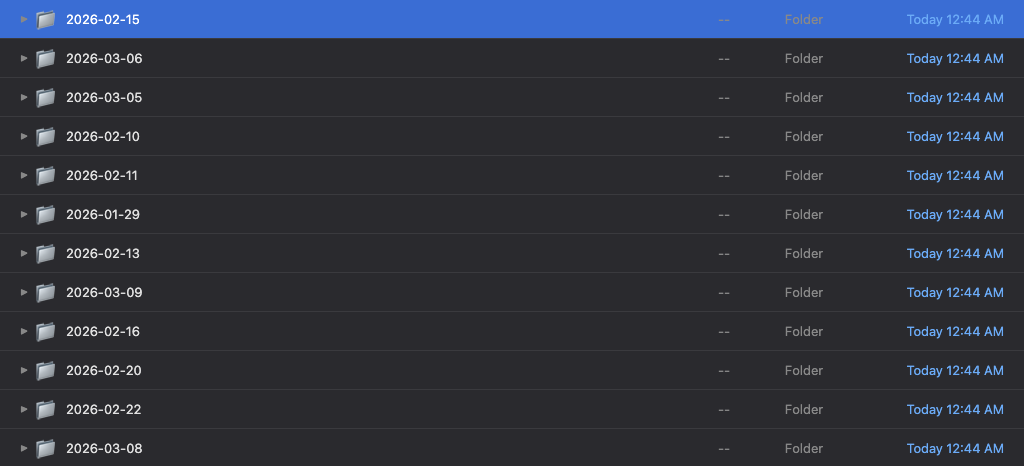
3. Creates date-based subfolders
4. Moves screenshots to the appropriate folders
When I tried this, it sorted hundreds of screenshots by month in under a minute. Doing it manually would have taken an hour.
Example 2: Research + Report Writing
“Research SaaS market trends and create a 3-page report as a Word file. Include tables and charts.”
This is a more complex task. Claude searches the web, gathers data, organizes it, and creates a .docx file. The output was quite good — sufficient quality to use as a company draft.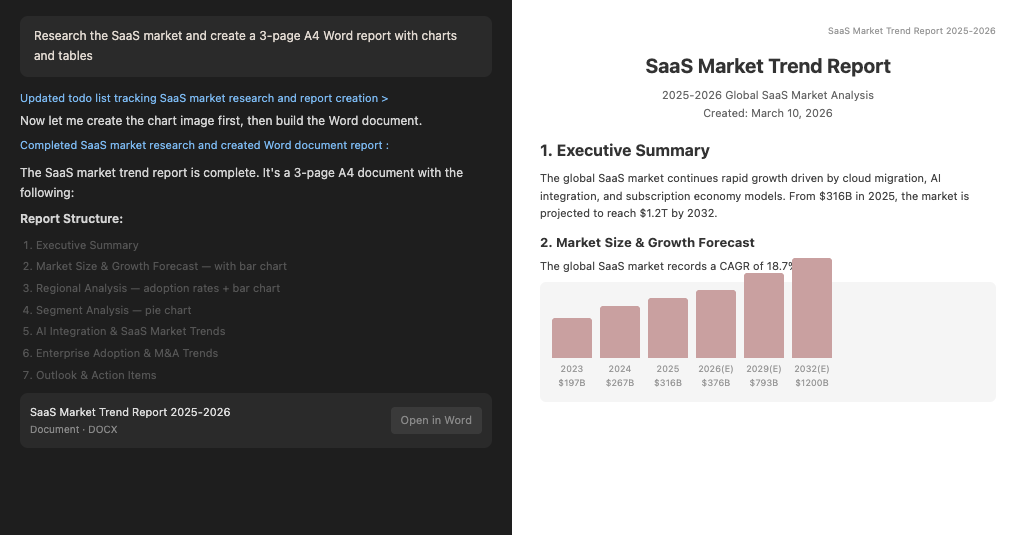
Example 3: Excel Data Analysis
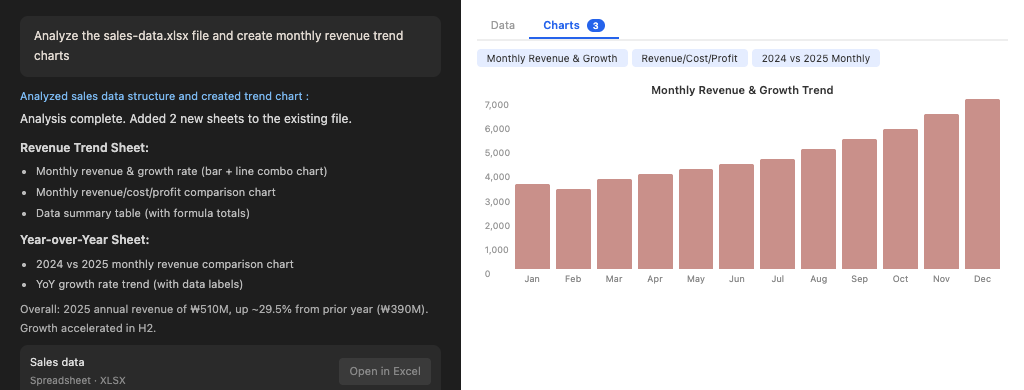
“Analyze the sales-data.xlsx file and create monthly revenue trend charts. Calculate year-over-year growth rates too.”
It reads the Excel file directly, analyzes it, and creates charts in a new sheet. This was a game-changer. All that time struggling with pivot tables — gone.
Example 4: App Planning + Design Document (Real-World Use)
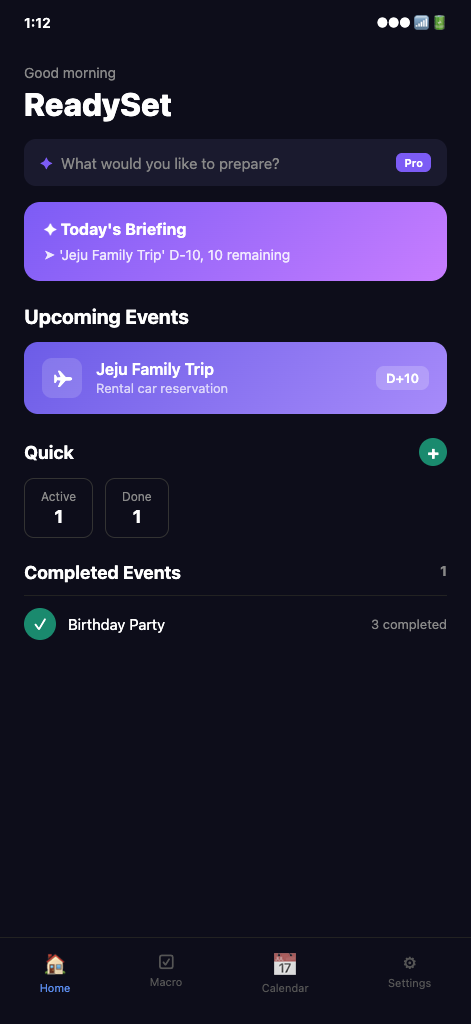
This was personally the most impressive use case. Whenever I went camping or traveling, I’d create a new packing list every time. Repeating the same thing got annoying. So I asked Cowork:“Plan an iOS app where you can save event preparations as macros for reuse. Manage packing lists and timelines per event type (camping, travel, ceremonies), and include AI auto-generation of checklists.”
Cowork did the market research, feature definition, and even screen layout on its own.
The output was good enough that I’m actually building the app based on it. Using SwiftUI + Claude API — “just enter the event name and AI generates packing lists and timelines automatically.”
Here’s a quick look at the core features.
| Feature | Description |
|---|---|
| Macro System | Register once, start the same event prep with one tap next time |
| AI Auto-Generation | Type “Jeju 4-day family trip” and get auto-generated packing list + D-day timeline |
| D-day Countdown Alerts | Automatic push notification scheduling at D-7, D-3, D-1, etc. |
One-liner: You don’t need great prompt skills. “Do this” level instructions work fine. The key is that you can delegate even complex planning tasks.
Step 4: Monitor the Work in Progress
One of the great things about Cowork is full transparency. You can see what Claude is doing in real time. For complex tasks, you’ll see “sub-agents” — multiple AIs working in parallel. One does research while another sets up document formatting. If something goes off track, you can stop and redirect anytime. Just say “no, go in this direction instead.”Pros vs Cons from Real Use
What Was Good
File access is genuinely convenient. With ChatGPT, you upload files, download results… the process was tedious. Cowork reads and saves directly from your folder. Handles complex tasks in one shot. Multi-step requests work at once. Like “research this and make a PPT.” ChatGPT would need step-by-step instructions. Output quality is solid. Document creation and data analysis were honestly impressive. Good enough to use as company drafts.What Was Disappointing
Can’t close the app. If you close the desktop app mid-task, the session disconnects. Same with closing a laptop lid. No background processing is a bit inconvenient. No web access. Desktop app only means no mobile or tablet use. Frustrating when you need it on the go. Sometimes it tries too hard. Running multiple sub-agents can lead to overwork. Usage drains fast, so clearly defining the scope helps.5 Tips I Learned from Using It
1. Create a Dedicated Working Folder
Mixing sensitive files is risky, so create a dedicated “AI-workspace” folder for tasks.2. Specify the Output Format Upfront
Saying “make it in Word,” “write in markdown,” or “organize in Excel” dramatically improves output quality.3. Connect Integrations
Linking external services like Google Drive and Gmail expands what Cowork can do. Add connectors in settings.4. Use Plugins
Cowork has category-specific plugins. Document writing, HR, design — add specialized capabilities. Plugins noticeably improve output quality.5. Set Standing Instructions
Don’t want to repeat the same instructions? Set defaults like “always respond in English” or “write reports in casual tone.” Once set, they apply to every session.How It Compares to ChatGPT
Honestly, ChatGPT and Claude Cowork serve different purposes.| Feature | ChatGPT | Claude Cowork |
|---|---|---|
| Approach | Question → Answer (chat) | Task request → Deliverable (agent) |
| File Access | Upload/download required | Direct local folder access |
| Complex Tasks | Need to break into steps | One-shot request |
| Output Type | Text-focused | Files (docx, xlsx, pptx, etc.) |
| Platforms | Web, app, mobile — everywhere | Desktop app only |
| Best For | Quick questions, ideas, conversation | Document work, data analysis, file management |
FAQ
Q. Can I use Claude Cowork for free? No. A paid subscription is required. Pro ($20/month) works, but usage limits are tight. For serious use, Max 5x ($100/month) or higher is recommended. Q. Can I use Cowork in a web browser? Not currently. It’s only available on the Claude desktop app for macOS or Windows. Mobile isn’t supported either. Anthropic may expand this later, but as of March 2026, it’s desktop only. Q. Will my files be leaked? Claude does read your files, but work happens in a sandbox on your computer. However, since Cowork is still in research preview, be cautious with confidential company documents or files containing personal information. Q. Should I subscribe to ChatGPT Plus or Claude Max? They serve different purposes. For quick questions, image generation, and the GPT Store — ChatGPT Plus is better. For document work, data analysis, and file-based tasks — Claude is stronger. Since the price points differ ($20 vs $100), choose based on which type of work you do more. Q. Are agentic AI and Cowork the same thing? Essentially the same concept. “Agentic AI” is the broader category, and Claude Cowork is one real-world implementation of it. For a detailed explanation, see our What Is Agentic AI? post.What to Do After Reading This
If I had to recommend just one thing to try right now: install the Claude desktop app and go to the Cowork tab and say “organize the file list on my desktop.” It takes 30 seconds, and you’ll immediately get a feel for what Cowork is like. After that, pick one repetitive task from your work and delegate it. Draft reports, data cleanup, email drafts — things like that. You’ll be surprised how well it handles them.Delegating work to AI turned out to be this easy. Once you try it, there’s no going back.
Official Sources
Written March 7, 2026 · Based on Claude Cowork Research Preview