Google Search Live — Talk to Your Camera and Google Answers
We tried Google Search Live, launched worldwide on March 26. Point your camera and talk — Gemini 3.1 Flash Live answers in real time. Available now on the Google app for Android and iOS.
목차 (10)
March 27, 2026 · Guide
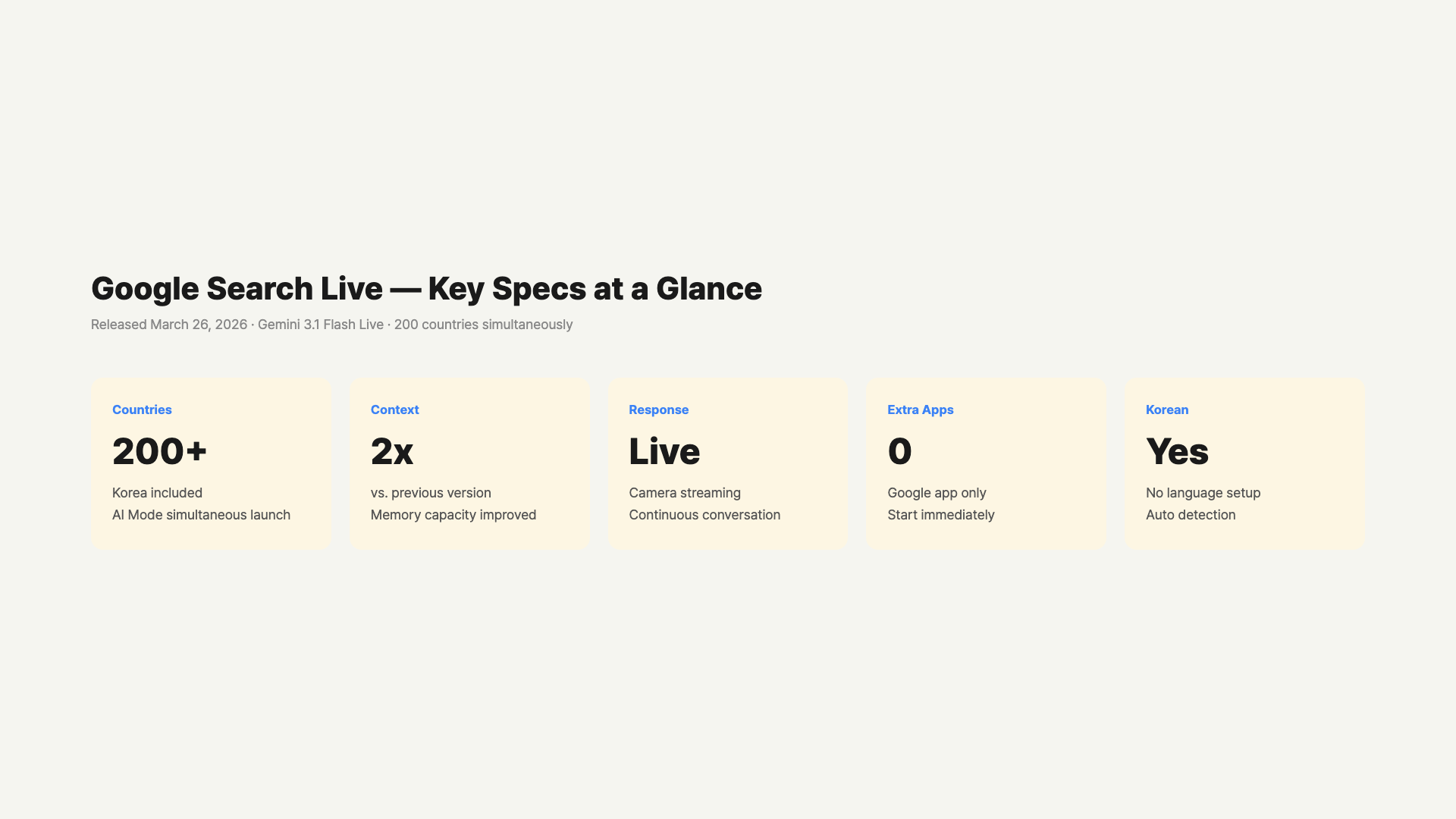
Google has finally opened up camera-based search to the entire world. Yesterday (March 26), Google Search Live launched simultaneously in over 200 countries that support AI mode. You can hold up your smartphone, point at the ingredients in your fridge, and ask “What can I make with these?” No typing required.
While the existing Google Lens answered one-off questions like “What is this plant?”, Search Live supports continuous conversation. You can share what your camera sees and keep talking with Google. A new model called Gemini 3.1 Flash Live powers it all. I tried it the day after launch, and here’s what I found.
– Google Search Live: A search feature that lets you talk to Google using camera + voice
– Base Model: Gemini 3.1 Flash Live (launched alongside on March 26)
– Availability: Over 200 countries where AI mode is available
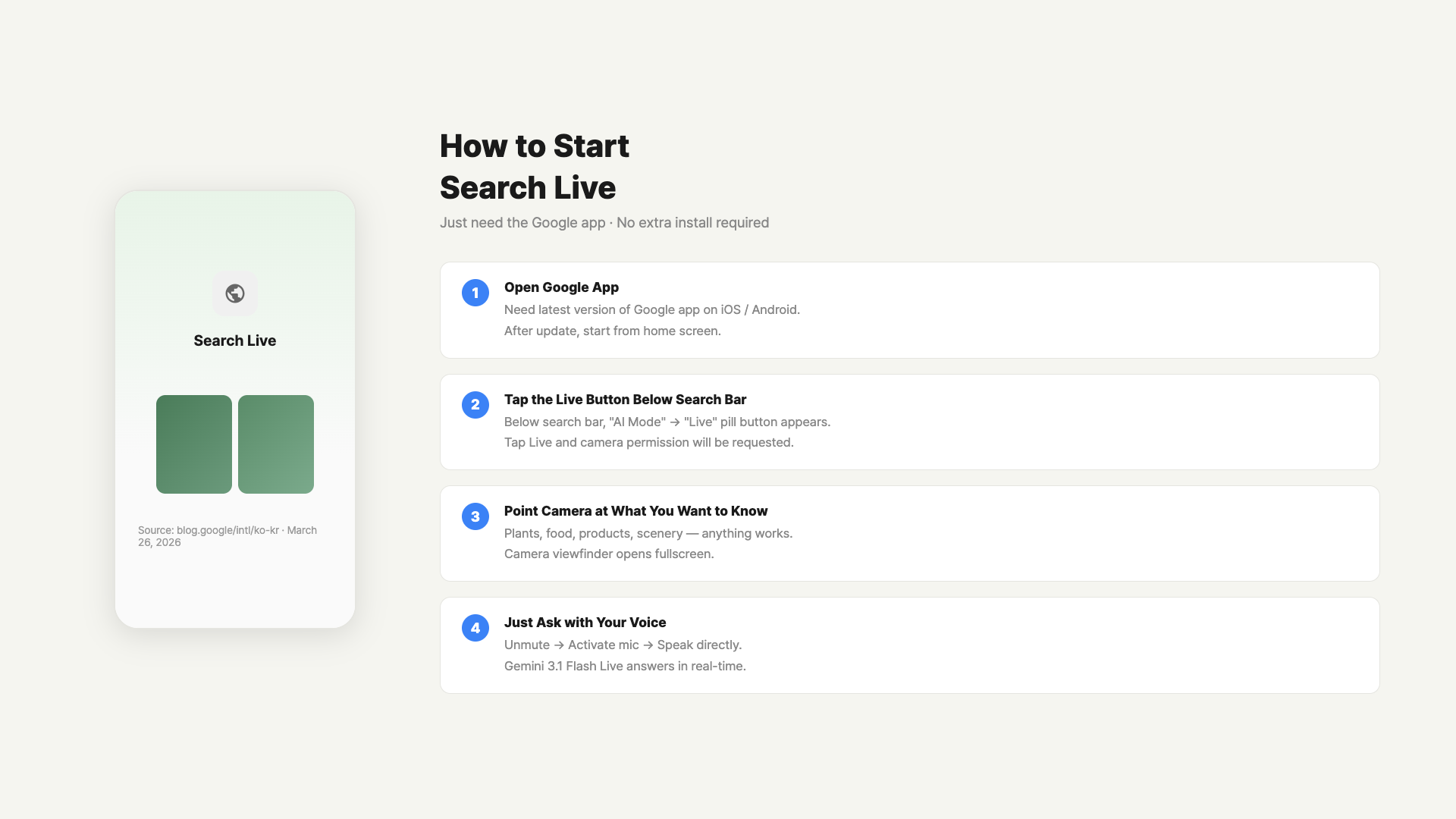
– How to Start: Google app → Tap the Live icon below the search bar
– Improved response speed, 2x longer conversation memory, better noise handling vs. previous version
– Stronger context retention than ChatGPT Vision or Copilot, with Google web search integration
What Is Google Search Live?
The era of typing in a search bar is gradually coming to an end. Search Live is a feature where you turn on your smartphone camera and talk, and Google analyzes what the camera sees in real time while having a conversation with you. Instead of getting a one-word answer to a single voice command, you can ask follow-up questions.
The difference from the existing Google Lens is clear. Lens works by taking an image and then showing results. Search Live keeps the conversation going while the camera stays on. For example, a flow like “What can I make with these ingredients?” → “Can I skip the onion?” → “How many servings is this?” happens naturally.
This isn’t entirely new. It was tested in the US and India first, then expanded simultaneously to over 200 countries worldwide on March 26, wherever AI mode was available. If you have the latest version of the Google app, you can try it right now.
Gemini 3.1 Flash Live — The Core Technology
The brain behind Search Live is Gemini 3.1 Flash Live. Google described it as “the highest quality audio and voice model we’ve ever built.” It was unveiled on the same day as the global launch of Search Live (March 26).
Three things changed compared to the previous model. First, response speed got faster. It feels like you get an answer almost instantly after finishing your sentence. Second, its ability to distinguish your voice in noisy environments improved. It recognizes well even in rooms with the TV on or in cafes with background noise. Third, conversation context memory is now 2x longer than before. The issue of forgetting earlier content during long brainstorming sessions has been significantly reduced.
Multilingual support is built in by default. Without any language settings, if you speak in your language, it responds in that language. I tried asking “What is this?” in Korean and the conversation flowed without issues. It’s not perfect, but it’s at a practical level. Being able to naturally continue in your own language without needing to switch is really convenient.
Gemini 3.1 Flash Live is also available as a developer API. If you want to build your own real-time conversational agent, you can test it right away in Google AI Studio.
How to Get Started Right Now
Setup isn’t complicated. One app is all you need. Both Android and iOS are supported.
Here’s the most basic method. Open the Google app and you’ll see a new icon right below the search bar. It says “Live.” Tap it and it’ll ask for camera and microphone permissions. Grant them and conversation mode starts immediately. Just start talking.
If you use Google Lens frequently, there’s an even faster way. A new “Live” tab has appeared at the bottom of the Lens screen. You can switch to conversation mode while pointing at something with Lens. The flow of scanning with Lens → seeing results → asking follow-up questions happens all within one screen.
Google app Live icon tap → Starting a conversation / GoCodeLab
| Launch Method | Path | Best For |
|---|---|---|
| Directly from Google app | Live icon below search bar | First-time use |
| Switch from Google Lens | “Live” tab at the bottom of Lens | When a question comes up while using Lens |
| From AI mode | AI mode → Camera icon | When you need visual info during a text search |
What Changes When You Turn On the Camera?
The difference between using the camera and not using it is quite significant. Without the camera, voice-only mode is just regular AI voice search. The moment you turn on the camera, Google shares your field of view. You no longer need to describe the situation in front of you.
Take a broken washing machine as an example. Just point your camera at the washing machine screen showing an error code and say “What does this error code mean?” No need to type “E4 error code.” Google reads the screen and even pulls up the relevant brand’s service information.
What personally impressed me was the camera switching speed. Turning on the camera doesn’t break the conversation flow. Even if you move the camera around while talking, it follows the changes in real time. When assembling furniture, you can ask “Where does this part go?” while moving the camera around, and it tracks the context well.
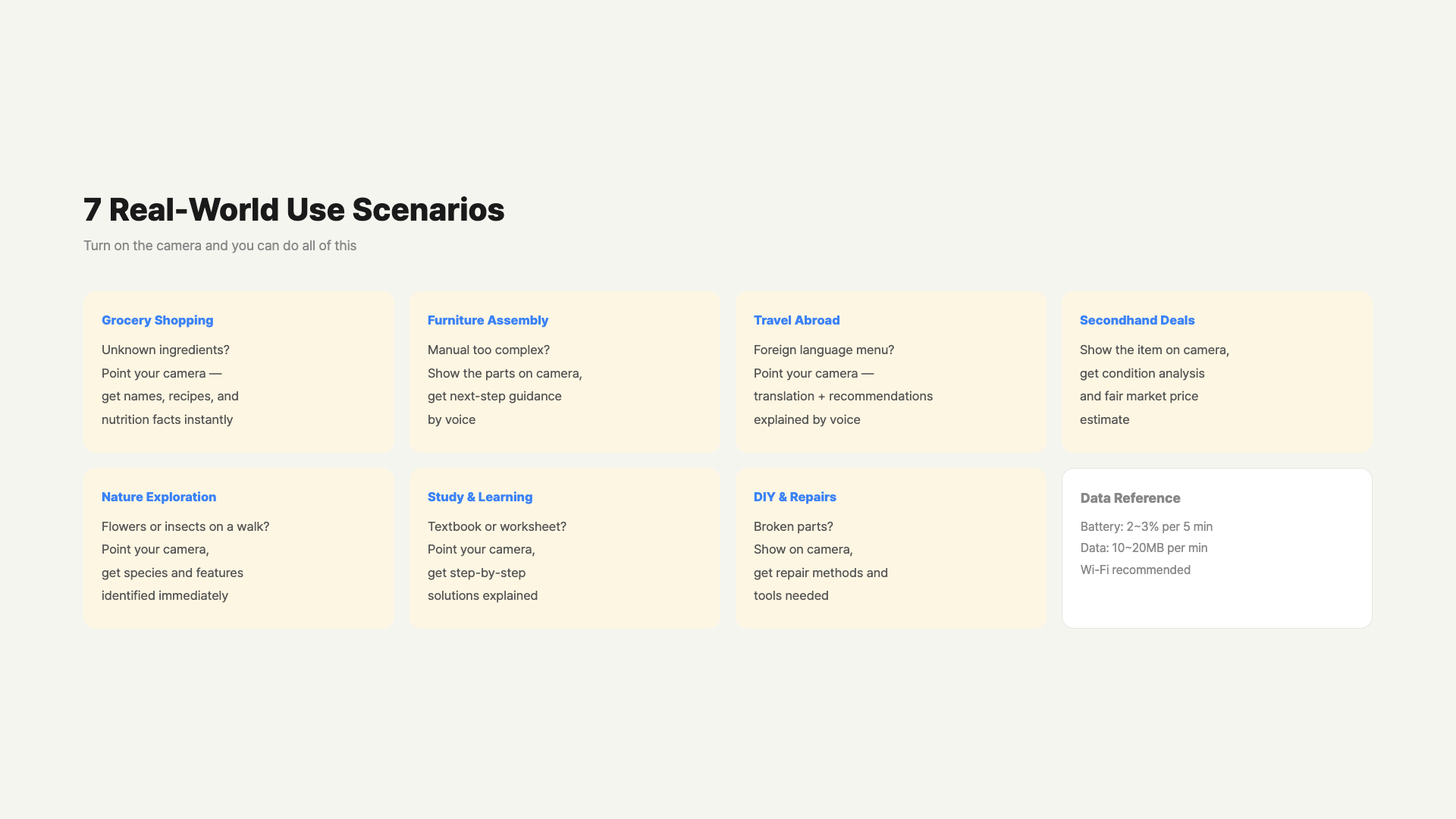
One thing to note is battery consumption. Since the camera and microphone are both on with real-time processing, it uses more battery than regular search. About 5 minutes of continuous use drains roughly 2-3%. If you plan to use it for a while, keeping a charging cable handy is a good idea.
7 Real-World Use Cases
Here are situations where I thought “this would be useful” while trying it out.
1. Identifying Unfamiliar Ingredients at the Grocery Store
Point your camera at a vegetable you’ve never seen or an imported fruit and ask “What is this? How do I cook it?” You can continue the conversation to ask about recipe ingredients and storage methods. No typing — your hands stay free.
2. Getting Stuck During Furniture Assembly
When the manual is unclear, show the part to the camera and ask — Google guides you based on the visual information. Hold up a screw and ask “Is this the right direction?” and it confirms. I tried this myself, and it was quite practical.
3. Deciphering Menus While Traveling Abroad
Point your camera at a foreign restaurant menu and ask “What ingredients are in this dish? Is it vegetarian?” Translation and follow-up questions all happen within one conversation flow.
4. Checking Market Value of Used Items
At a secondhand market, point the camera at an item and ask “How much is this worth? What brand is it?” Useful for getting quick information before negotiating.
5. Nature Exploration
Point the camera at a flower or insect in the park and ask “What plant is this? Is it toxic?” It feels like Google Lens’s plant recognition combined with a conversation feature.
6. Analyzing Physical Materials During Study
Point the camera at your textbook and ask “What does this graph mean? Can you explain it more simply?” No need to capture and paste a textbook image — just point the book at the camera. It recognizes formulas and charts too.
7. Checking Materials During DIY Repairs
At the hardware store, point the camera at a part and ask “Is this screw M6 gauge? What’s a compatible drill bit?” Even if you’re not an experienced DIYer, you can pick the right parts.
Search Live requires an internet connection. In offline environments or on slow networks, responses may be delayed or the connection may drop. If you’re traveling abroad, make sure to check your data roaming settings in advance.
ChatGPT Vision vs Copilot vs Search Live
AI camera search features aren’t exclusive to this service these days. Here’s how they compare based on my hands-on testing.
ChatGPT (OpenAI) uses GPT-4o Vision to analyze one photo at a time. Real-time continuous conversation is possible in Advanced Voice Mode, but it doesn’t integrate with web search results in real time. The biggest advantage of Google Search Live is that it pulls web search results directly into answers. Recipes, shopping, and news all connect seamlessly.
Microsoft Copilot’s strength is its Bing search integration. However, the continuous camera conversation feature isn’t as smooth as Search Live. If you frequently use the Google ecosystem (Maps, Shopping, Reviews, etc.), Search Live connects much more naturally.
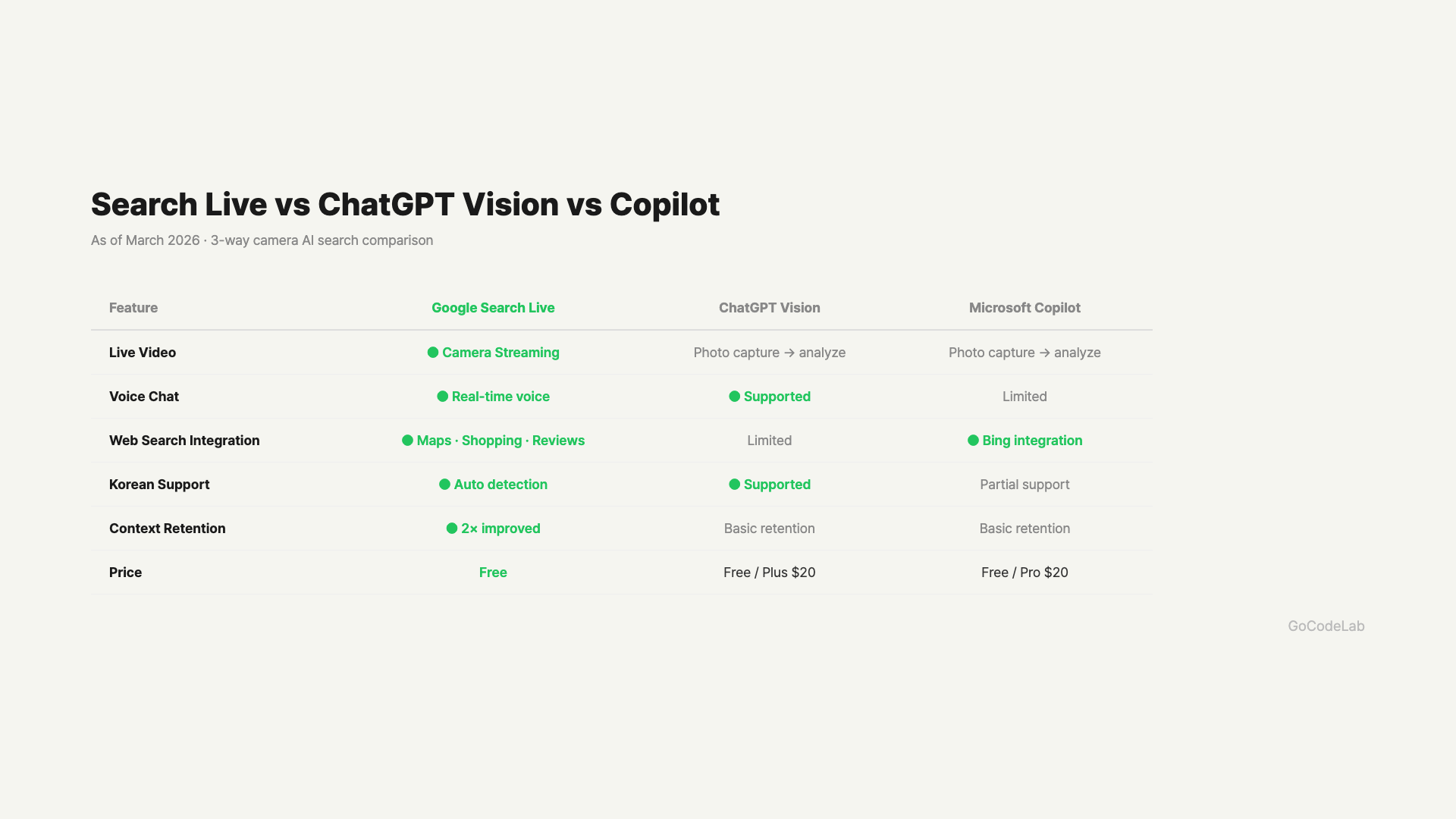
| Feature | Google Search Live | ChatGPT Vision | Copilot |
|---|---|---|---|
| Real-time Camera Streaming | Supported | Partial | Partial |
| Web Search Integration | Strong | Limited | Strong (Bing) |
| Multilingual Naturalness | Excellent | Excellent | Average |
| Conversation Context Retention | Up to 2x improved | Excellent | Average |
| Google Services Integration | Maps, Shopping, Reviews | None | None |
| Free to Use | Free | Plan restrictions | Free |
Privacy and Data Retention — An Honest Summary
The most common question I get about Search Live is about privacy. Many people feel uneasy about showing their surroundings in real time through the camera. Here’s an honest breakdown of what’s known and what’s still unclear.
According to Google’s official announcement, Search Live processes the camera stream in real time and does not store it separately. However, Google hasn’t clearly disclosed all the details of its data retention policy in official documentation. If you use it while signed into your Google account, search history may be recorded and could be used for ad personalization.
There are situations where you should realistically be careful. It’s best to avoid pointing the camera at documents containing sensitive personal information like hospital records, bank statements, or contracts. Being cautious in spaces with private conversations or confidential materials is also reasonable. On the other hand, checking ingredients at the grocery store or asking about a building on the street is nothing to worry about.
In your Google Account settings, you can set “Auto-delete search history” to 3 months or 18 months, and Search Live-related records will also be automatically deleted. Manual deletion is also available at My Google Activity (myactivity.google.com).
It Works with Google Home Too
It’s not limited to smartphones. Integration with Google Home was recently updated. Gemini can analyze live feeds from home security cameras or smart doorbells. Say “Show me the front door camera, check if a package arrived” and you can see it right on your Google Home display or smart TV.
Home camera integration is still in its early stages. It works well with Nest camera models, but support for third-party cameras varies by model. However, the direction is clearly toward unifying smart home and AI search, so it’s likely to expand further.
FAQ
Q. Can I use it right away in my country?
Yes, you can. Search Live launched simultaneously in over 200 countries where Google’s AI mode is active. Update the Google app to the latest version and tap the Live icon below the search bar to get started. Both iOS and Android are supported. If you don’t see the icon, check for an app update first.
Q. How much data does it use?
Since camera streaming happens in real time, it uses more data than regular text searches. It’s roughly similar to streaming YouTube at low quality (360p). Expect about 10-20MB per minute of use. No worries on Wi-Fi, but if you’re on LTE, be mindful during extended use.
Q. How is it different from the existing Google Lens?
Lens works by taking a single photo and showing results. Search Live keeps the camera on and continues a conversation. Lens excels at one-off recognition, while Search Live is strong with continuous contextual questions. If Lens is “identify this for me,” Search Live is more like “let’s talk about this.”
Q. What about privacy? Is the camera footage saved?
According to Google’s official announcement, Search Live processes the camera stream in real time and does not store it separately. However, if you use it while signed into your Google account, search history may be recorded. Avoid pointing the camera at privacy-sensitive locations (hospitals, safes, personal documents, etc.). Setting up automatic activity deletion in Google Account → Data Security settings adds extra peace of mind.
Q. Does it work better on iOS or Android?
Both are supported, but based on the initial launch experience, Android feels slightly smoother. Since Android is Google’s own OS, app integration is more natural. On iOS, keeping the Google app up to date gives you the same features. If you’re an iPhone user, check for a Google app update first.
Q. Should I use the Google Lens app or the Google app?
Just the Google app is enough — no separate installation needed. Tap the Live icon below the search bar in the Google app to get started. You can also enter through the “Live” tab at the bottom of the Google Lens app, but the Google app provides a more direct path. Either way, you get the same functionality.
Q. Does it drain battery quickly?
Since it uses the camera and microphone simultaneously with real-time AI processing, battery consumption is definitely faster than regular search. About 5 minutes of continuous use drains roughly 2-3%. Using it in short bursts as needed keeps it manageable. If you need extended use, bring a portable charger.
Wrap-Up
Google Search Live takes the concept of “searching with your camera” a step further by adding conversation. Instead of just scanning with Lens and seeing results, you can keep asking questions while looking at the same scene. In practice, it feels more natural than you’d expect.
It doesn’t shine in every situation. If the network is slow, responses stutter, and complex technical questions sometimes get shallower answers than text search. The fact that privacy policies aren’t fully disclosed yet is admittedly inconvenient. But for quick information checks and situations that require visual context, it’s quite practical.
Compared to ChatGPT Vision or Copilot, Search Live’s strengths are clear. Google search results, maps, and shopping information flow naturally into the conversation. If you’re already deep in the Google ecosystem, this is likely to become a frequently used feature. It’s already available in over 200 countries, so one Google app update is all it takes to try it out.
At GoCodeLab, we try AI tools hands-on and share honest reviews — subscribe to get new posts first.
This article was written on March 27, 2026. Features of Google Search Live and Gemini 3.1 Flash Live may change with future updates.
Related: Google Gemini Workspace Guide · Apple Siri + Gemini Overhaul · MCP Protocol 97 Million Installs