I Made One Widget Support 6 Platforms
I Made One Widget Support 6 Platforms
April 2026 · Lazy Developer EP.08
FeedMission only running on the web would make it half useful. It needed to collect feedback in iOS apps, Android apps too. It should be embeddable as an iframe in Notion or Webflow, and installable through Google Tag Manager without touching code.
So I ended up making one widget work on 6 platforms. Script tag, React npm package, iOS SwiftUI native, Android Kotlin WebView, iframe embed, GTM custom tag. It’s like one convenience store listing on 6 different delivery apps. This post is a record of that process.
– Script tag: 9 data attributes for customization. 52px floating button + panel (380px desktop, fullscreen mobile)
– React: Distributed as npm package. useEffect for dynamic script loading + dedup
– iOS: Native SwiftUI — floating button + Sheet + direct API calls + Haptic
– Android: WebView loading embed URL + Jetpack Compose ModalBottomSheet
– iframe: CSP frame-ancestors * to allow all domains + dark mode
– GTM: Install via custom HTML tag without touching code
– Widget auto-hides on all platforms when quota is exceeded
The Basics: One Script Tag
The most fundamental approach is the script tag. It works on any website. Just one line in the HTML.
<script src=“https://feedmission.com/widget.js”
data-widget-key=“my_key”
data-theme-color=“#6366f1”
data-lang=“en”
defer></script>
When this script loads, a 52px circular button appears at the bottom right of the page. Tap it and a feedback form panel opens. On desktop it’s a 380px-wide panel; on mobile (under 640px) it goes fullscreen.
9 things can be customized via data attributes. Theme color, position (left/right), button text, language (ko/en), hide name/email fields, and whether to refresh after submission. When the widget loads, it calls /api/feedback/status to check the quota. That’s the same check from EP.07. If the quota is exceeded, the button doesn’t appear at all.
When feedback is submitted, it calls POST /api/feedback. The widgetKey identifies the project, and CORS headers allow requests from any domain. If a 429 comes back, it shows a “Monthly quota exceeded” message.
React: Distributed as an npm Package
For React projects, installing via npm package is the natural approach. I created a feedmission-react package and published it to npm.
import { FeedMissionWidget } from ‘feedmission-react’
<FeedMissionWidget
widgetKey=“my_key”
lang=“en”
themeColor=“#6366f1”
/>
Internally, it dynamically loads the widget.js script in a useEffect. To prevent duplicate loading, it first checks if a script with the data-feedmission attribute already exists. When the component unmounts, it cleans up the script and DOM elements. Props map to data attributes, so it provides the same functionality as the script tag version.
iOS: Why I Went Native SwiftUI
iOS could have been done with a WebView. That’s what I did for Android. But on iOS, the WebView experience is different. Loading times are noticeable, and Sheet animations feel off. I decided to go native SwiftUI.
ContentView()
.feedMission(config: .init(
widgetKey: “my_key”,
lang: .en,
themeColor: .indigo
))
Adding the .feedMission(config:) modifier places a 52px floating button at the bottom right. Tap it and you get haptic feedback, then a Sheet slides up. With presentationDetents([.medium, .large]), it can open halfway or fullscreen.
The feedback form is native SwiftUI. TextField, TextEditor, type selection buttons (Feature/Bug/Other). The email field uses keyboardType(.emailAddress) so the @ keyboard comes up right away. On submit, it directly calls POST /api/feedback. No WebView means no loading — instant response.
Quota checking is included too. When the view appears, .task { available = await FeedMissionAPI.checkStatus(...) } checks the quota. If available is false, the floating button doesn’t appear. If a 429 comes back, an error haptic fires along with a “Feedback is currently unavailable” message.
Android: WebView Was Enough
For Android, the decision was different from iOS. Android WebView performs well and blends naturally with native UI. Loading the /embed/[slug] URL in a WebView was easier to maintain than building a separate native form. When the widget UI gets updated on the web, it’s automatically reflected on Android too.
FeedMissionWidget(
slug = “my-app”,
themeColor = Color(0xFF6366F1),
lang = “en”
)
Tapping the 52dp circular FAB (Floating Action Button) brings up a ModalBottomSheet. Height is 85% of the screen. Inside is a WebView loading feedmission.com/embed/[slug]. JavaScript and DOM Storage are enabled, so all widget features work.
I also built a Kotlin View-based version. For projects not using Compose. A WebView sits inside a Dialog, with Gravity.BOTTOM so it slides up from the bottom.
iframe: Works Anywhere — Notion, Webflow, You Name It
To collect feedback in environments where code can’t be modified, an iframe is needed. I made the public feedback board at /embed/[slug] embeddable in an iframe.
By default, Next.js blocks iframe embedding. Because of the X-Frame-Options header. This restriction needed to be lifted only for the /embed path.
{
source: “/embed/:path*”,
headers: [
{ key: “X-Frame-Options”, value: “ALLOWALL” },
{ key: “Content-Security-Policy”,
value: “frame-ancestors *” },
]
}
frame-ancestors * allows any domain to embed this page in an iframe. It doesn’t apply to other paths. The embed page supports dark mode (?theme=dark) and header hiding (?hideHeader=true) via query parameters.
GTM: Install Without Touching Code
Sometimes a marketer needs to install the widget without a dev team. With Google Tag Manager, you can inject the script as a custom HTML tag without touching code. On the widget install page, selecting the GTM tab generates copy-ready code.
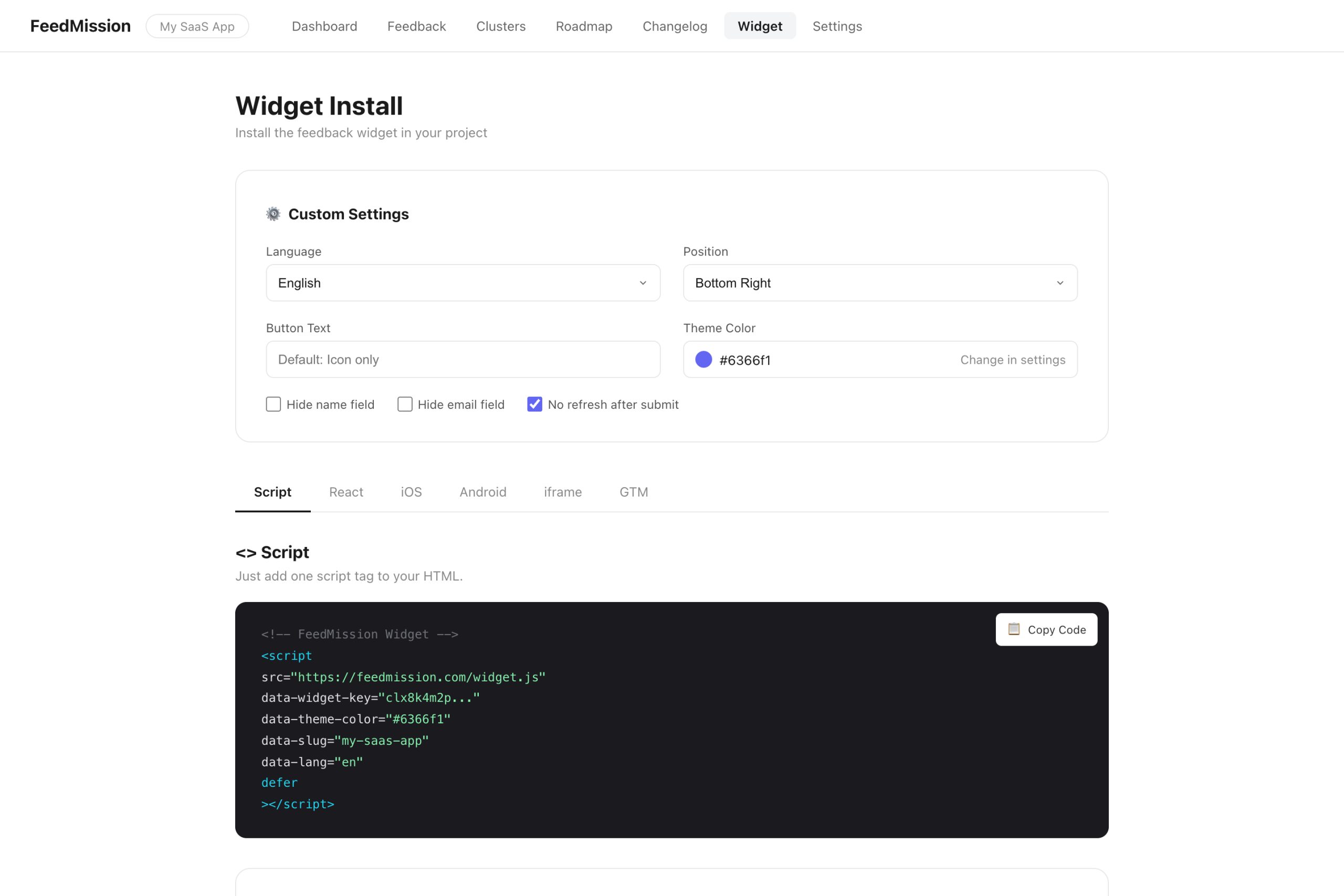
Widget Install Page — 6-Tab Code Generator
On the Widget page in the dashboard, selecting an install method auto-generates the code for that platform. Setting custom options (language, position, button text, field visibility) updates the code in real time.
I added a preview too. On the web tab, a floating button appears inside a browser mockup. On the iOS/Android tabs, the widget is shown inside a phone frame (with notch and home indicator).
Different Decisions for Different Platforms
I didn’t build all 6 platforms the same way. The decisions varied based on platform characteristics.
Why iOS went native and Android went WebView. iOS WebView (WKWebView) has a noticeable loading lag inside a Sheet, and scrolling feels off. Android WebView, on the other hand, feels quite natural in a BottomSheet. The cost of building a separate native form was only worth it on iOS where the UX difference was significant.
I also built a WordPress plugin, but it’s pending review so the tab is temporarily hidden in the dashboard. Internally, it injects the script tag via the wp_footer hook. Setup is just entering the Widget Key in the admin page.