I Let My AI Assistant Handle Daily Life Too
Weather, nearby places, vehicle management, expense tracking, and news -- I added five modules and turned a dev-only AI assistant into a daily-life assistant. Built on MCP with Claude.
April 2026 · Lazy Developer EP.14
In EP.10, I built a personal AI assistant. In EP.11, I connected my SaaS data. In EP.13, I automated morning briefings. All of it was development-related. Revenue, feedback, keyword rankings. Data I needed for work.
Then it occurred to me. The structure is identical, so why not extend it to daily life? Adding a module to the MCP server takes about 10 minutes. It is just fetching data from an API and formatting it.
So I added five at once. Weather, places, vehicle, expenses, news. The dev assistant became a life assistant.
– Five new modules complete the daily-life automation
– Weather: “Do I need an umbrella?” One question, instant answer
– Places: “Any cafes nearby?” Location-based search
– Vehicle: Fuel level, maintenance, nearby gas stations via Kia Connect
– Expenses: “Starbucks $5.50” — auto-categorized and logged
– News: Tech trends automatically included in morning briefing
API — A channel for programs to talk to each other. Ask a weather server “What is Seoul’s weather?” and it sends a response.
JSON — A data format. Like a spreadsheet, but structured for programs to read.
OAuth2 — A consent flow for login. Like when Google asks “Allow this app to access your profile?”
GPS — Your current location. The blue dot when you tap “My location” in a map app.
1. Weather — The First One I Added
I opened the weather app every morning before heading out. Every single day. That got tedious. I wanted to just ask “Is it going to rain?” and get an immediate answer.
OpenWeatherMap provides a free API for weather data. I signed up and got an API key. Two minutes, start to finish.
The module code is minimal. Send a city name, get current weather and a weekly forecast back.
const url = `https://api.openweathermap.org/data/2.5/forecast`
+ `?q=${city}&appid=${apiKey}&units=metric&lang=en`
const res = await fetch(url)
const data = await res.json()
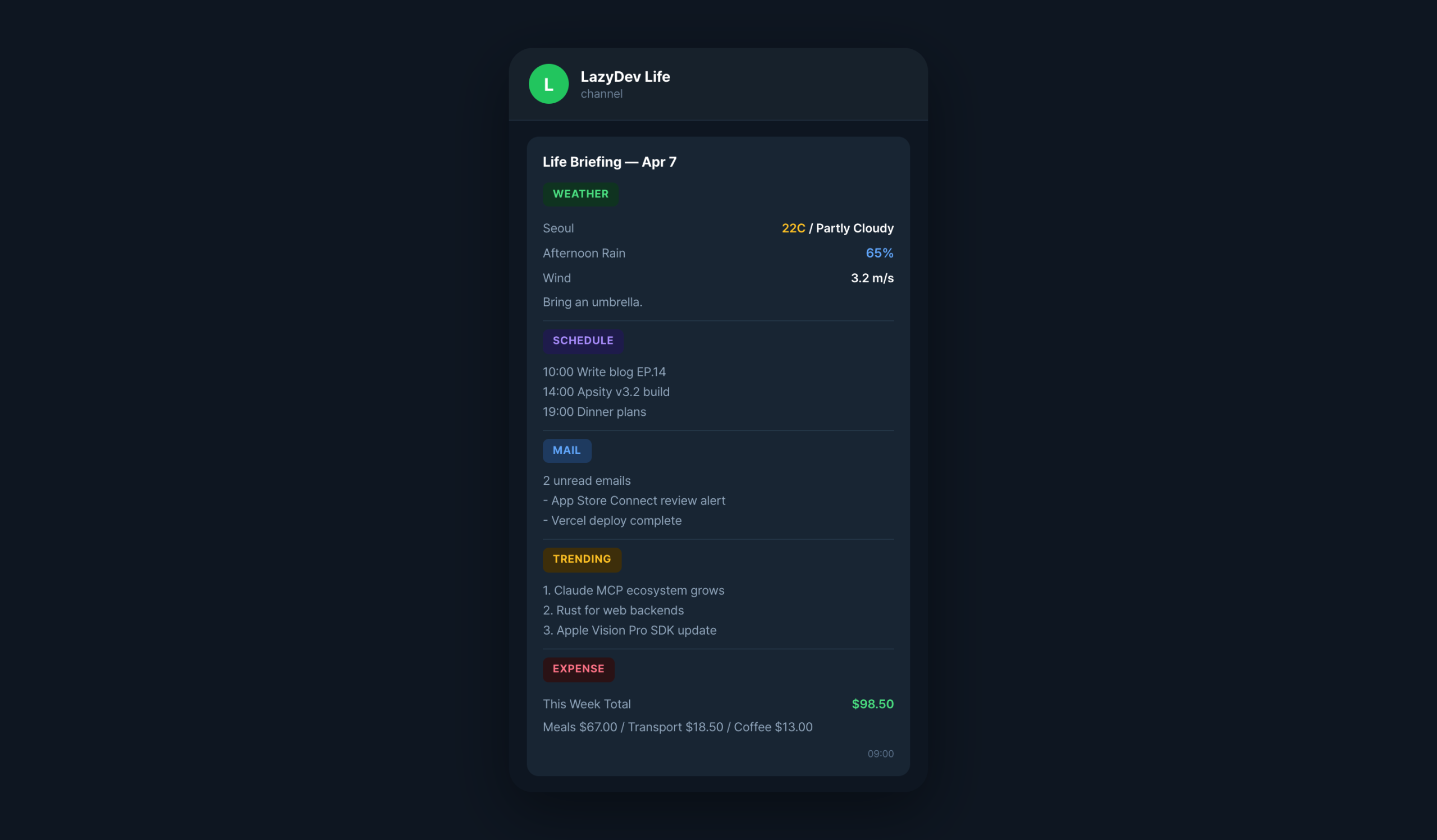
One request returns current temperature, feels-like temperature, humidity, wind, and precipitation probability. Ask “Do I need an umbrella today?” and the AI checks the precipitation probability and answers.
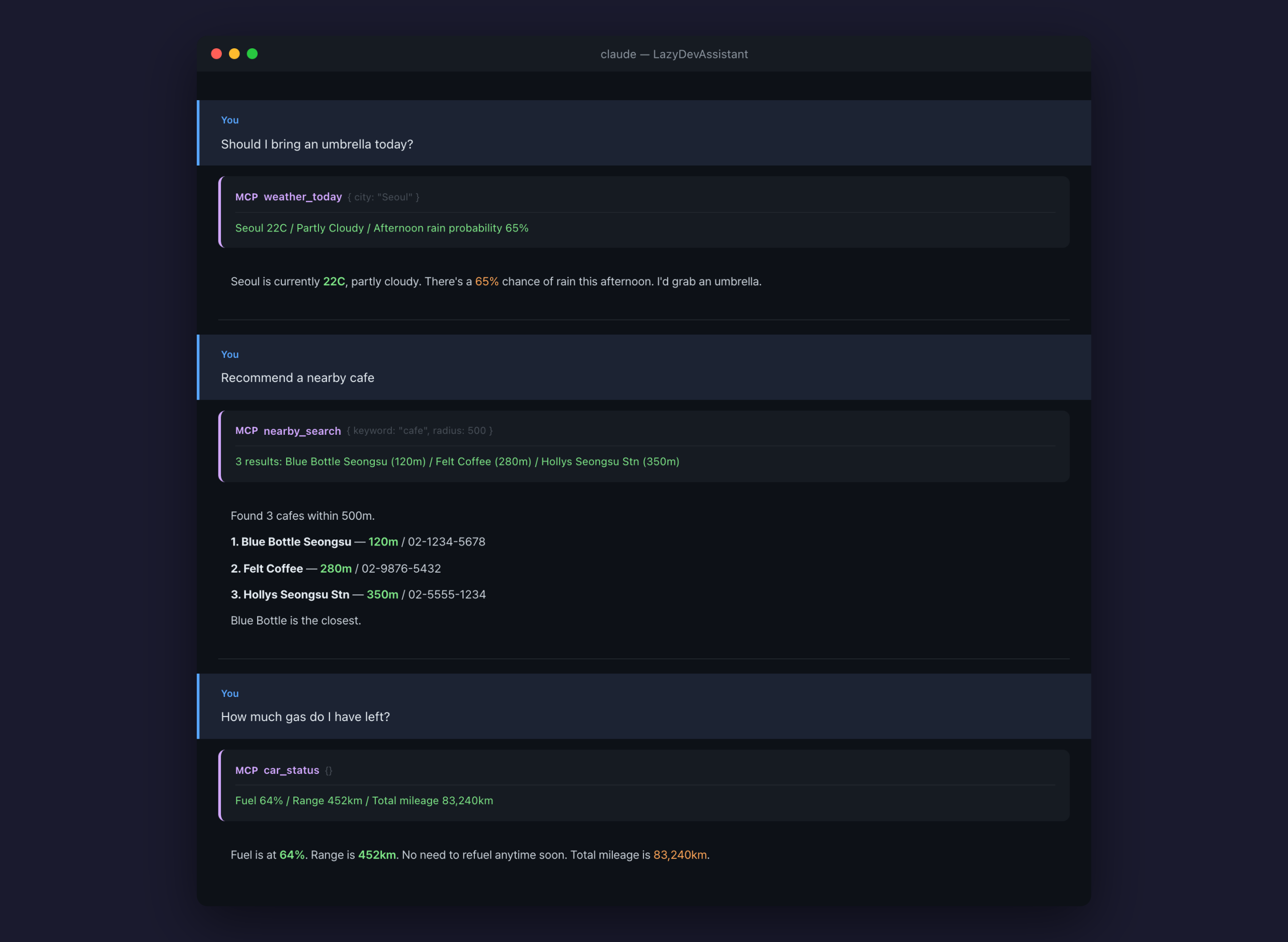
I plugged this into the morning briefing. Every day at 9 AM, weather arrives automatically in the Telegram life channel. No more opening the weather app.
2. Nearby Places — When “Find Me a Cafe” Just Works
After adding weather, I got greedy. “Any cafes nearby?” would be nice too. Opening the map app, tapping the search bar, typing a keyword — all of that was annoying.
I connected the Kakao Map API. You get a key from the Kakao developer site. Search by keyword and it returns location, phone number, and distance. I set default coordinates to my home, so saying “nearby” uses that as the reference point automatically.
In practice, it works like this.
“Recommend a cafe nearby”
— Returns 5 cafes within 1km, sorted by distance. The AI picks the highest-rated ones first.
“Any pharmacies open right now?”
— Filters to open pharmacies and lists them by distance.
“Find a parking lot nearby. Monthly rates preferred.”
— Pulls the parking lot list, then Claude scans for monthly rate availability.
“A lunch spot I can walk to”
— Searches restaurants within 500m, recommends based on ratings and review count.
“Car wash near here”
— Returns a list with distance and phone number.
An important distinction: Kakao Map handles the search, Claude handles the recommendation. The Kakao Map API just returns a list of results for the keyword “cafe.” Filtering for “highest rated,” “walking distance,” or “currently open” is done by the AI. A search engine and an AI working together.
Once this worked, I kept finding new uses. Started with cafes and pharmacies, then “nearest convenience store,” “laundromat nearby,” “a pediatrician in this area.” Typing one line in a chat window is genuinely faster than opening an app, tapping search, and typing a keyword.
Especially useful when traveling or in an unfamiliar neighborhood. Change the coordinates to “right here” and it searches from that spot. No waiting for a map app to lock onto your location.
3. Vehicle — The One That Took the Longest
The vehicle module ate the most time. I decided to use the official Kia Connect API, and the integration was not trivial.
Kia Connect uses OAuth2 authentication. In simple terms, it is the same pattern as “Sign in with Google.” A consent screen appears: “Allow this program to view your vehicle data?” You agree, receive a token, and use that token to access vehicle data.
There are four tools, each doing something different.
car_maintenance — Maintenance schedule management. Tell it “oil change at 79,000 km, every 6,000 km” in natural language, and it alerts you when the threshold approaches.
car_nearby_gas — Nearby gas stations and prices. Searches from the vehicle’s GPS location and shows real-time fuel prices.
car_ev — EV-specific. Battery charge level, estimated charge time, remaining range.
A fuel price information service run by the Korea National Oil Corporation. It provides real-time pricing for gas stations nationwide. Many map apps use this data under the hood when you search “gas stations nearby.”
The connection worked, but no data came back. “No vehicle information found.” The API key was correct, the token was valid, but the response was empty.
I spent half a day on this. The cause was a privacy consent toggle. You have to open the Kia Connect app, go into settings, and separately agree to the Connected Services privacy terms. This step was not mentioned in the API documentation. It was a single toggle buried deep inside the app.
Once I flipped that toggle, data flowed immediately. “Fuel level 64%, range 452 km.” Half a day to see that one line.
// 1. Request auth code — consent screen
const authUrl = `${baseUrl}/authorize`
+ `?client_id=${clientId}&redirect_uri=…`
// 2. After consent — receive auth code
const code = getCodeFromRedirect()
// 3. Exchange auth code for token
const token = await exchangeCodeForToken(code)
// 4. Use token to query vehicle data
const status = await getVehicleStatus(token)
The maintenance schedule is the most fun part. You register things through conversation.
Me: “Changed the oil at 79,000 km. Interval is every 6,000 km.”
AI: Registered. I will alert you when you approach 84,500 km. (1,500 km advance notice)
Me: “I need to book a regular inspection in September. Remind me 2 weeks before.”
AI: I will send a reminder on August 18.
Me: “Tire rotation at 75,000 km, every 10,000 km.”
AI: Registered. Alert around 83,000 km.
Me: “A/C filter was changed last summer, yearly replacement.”
AI: I will remind you around July this year.
All through conversation. At the mechanic when they say “When should we see you next?” — just tell the AI on the spot. No scribbling on paper or manually creating calendar events.
It is mileage-based, so more accurate than date-based. People with long commutes hit replacement intervals in under six months. Weekend-only drivers might go over a year. The AI pulls the current odometer from Kia Connect, so alerts match your actual driving pattern.
Gas station search works too. “Where’s a cheap gas station nearby?” returns stations near the vehicle’s GPS location, sorted by price. Prices come from OPINET, so they are real-time.
During the morning briefing, if fuel is low, it tells me automatically. “Fuel at 15%. Nearest station: XX Gas, 1,648 won/L (1.2 km away).” Without me asking.
4. Expense Tracking — The Simplest One
Easiest of the five. No API needed. Just a local file.
“Starbucks iced americano $5.50.” I say that, and the AI categorizes it automatically. Item: iced americano. Amount: $5.50. Category: coffee/drinks. Place: Starbucks. One line added to a JSON file.
{
“date”: “2026-04-07”,
“item”: “Iced americano”,
“amount”: 5500,
“category”: “Coffee/drinks”,
“place”: “Starbucks”
}
The AI determines the category. Say “Starbucks iced coffee” and it files under coffee/drinks. “Taxi $12” goes to transportation. “Lunch, kimchi stew, $8” goes to meals. No manual categorization needed.
“How much did I spend on coffee this month?” It reads the JSON file and sums by category. “April coffee/drinks total: $47.50. 12 transactions.” Budget tracking through conversation, no dedicated app required.
Data lives in a local JSON file. A structured format programs can read easily. No need to set up a database. One file does the job.
5. News — Why I Stopped Opening News Apps
Hacker News is a popular tech news aggregator among developers. Trending articles there give a pulse on industry trends. But visiting daily was tedious.
Hacker News has a Firebase API. I can pull the top stories list. I take the top 3 and generate a title plus one-line summary for each.
const topUrl = ‘https://hacker-news.firebaseio.com/v0/topstories.json’
const ids = await fetch(topUrl).then(r => r.json())
const top3 = ids.slice(0, 3)
const stories = await Promise.all(
top3.map(id =>
fetch(`https://…/${id}.json`).then(r => r.json())
)
)
“What’s in tech news today?” returns titles and summaries of the top 3 stories. I can ask directly, or it shows up automatically in the morning briefing.
Every day at 9 AM, it arrives in the Telegram life channel alongside weather. “Seoul 22C, possible rain PM. HN Trending: 1. Claude MCP ecosystem, 2. Rust for web, 3. Apple Vision SDK.” No separate news app needed.
Joining the Morning Briefing
Weather and news now feed into the morning briefing I built in EP.13. The life channel message got richer.
Before: schedule + email summary. After: weather + precipitation probability + top 3 tech trends added. One message in the morning and the day is roughly mapped out.
What the Module Pattern Did for Me
I was able to add all five in a single day because of the module pattern from EP.10. Call an API, format the result, return a standardized response. Follow that pattern, and a new feature takes about 50 lines of code.
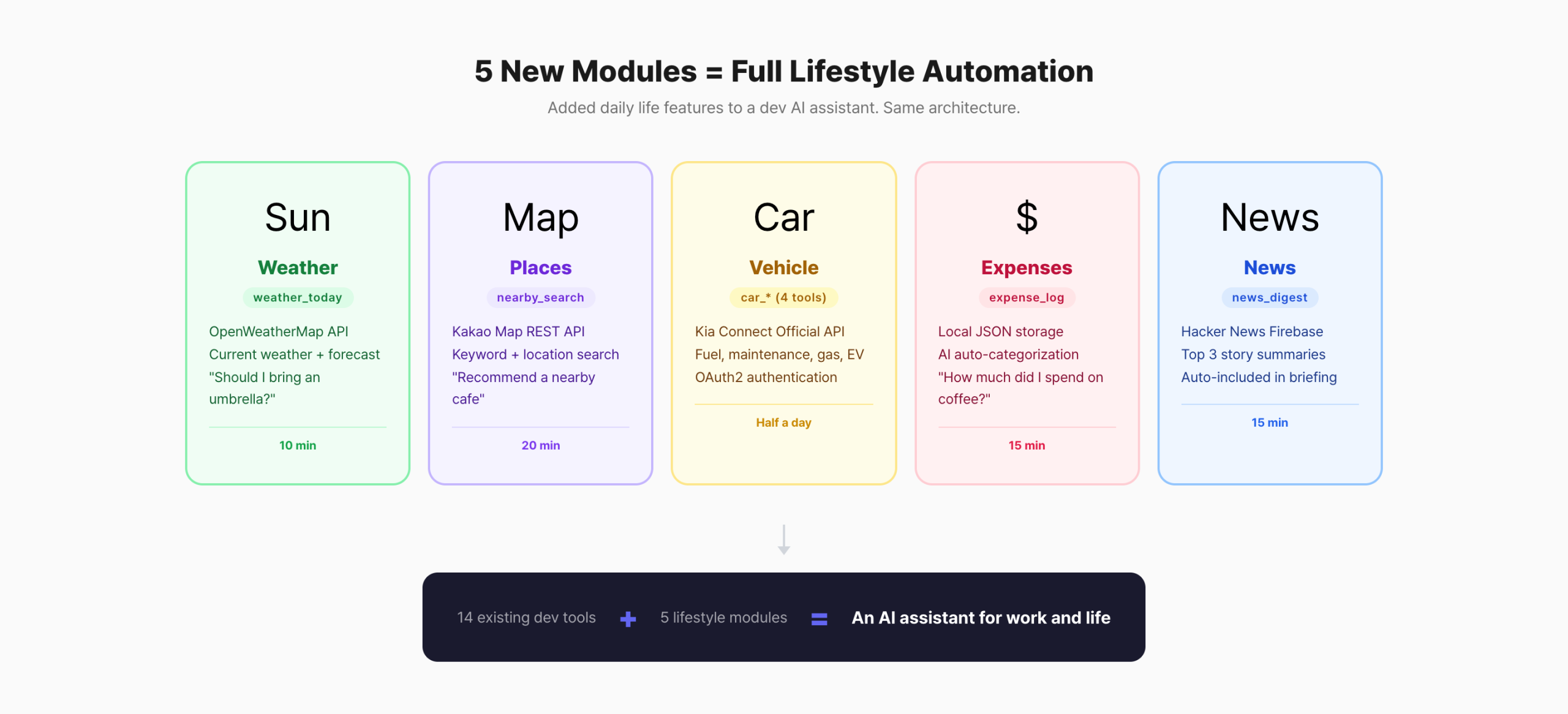
Weather was the simplest. One API key, one fetch call. Ten minutes. Expenses were similar — just file reads and writes. Nearby search was done once I connected the Kakao Map API.
Vehicle was the only one that took real time. OAuth2 authentication, the hidden consent step, a complex API response structure. But even that followed the same module shell. The internal logic was just longer.
Weather (weather_today) — 10 min. API key + one fetch
Places (nearby_search) — 20 min. Kakao app registration + keyword search
Vehicle (car, 4 tools) — Half a day. OAuth2 + privacy consent issue
Expenses (expense_log) — 15 min. JSON file read/write
News (news_digest + trending_tech) — 15 min. Firebase API
A Day in Practice
Morning. Telegram notification. I open the life channel: weather, schedule, and news are there. “22C, possible rain in the afternoon.” I grab an umbrella.
Lunchtime. “Any pho places nearby?” I send that to Telegram. Three restaurants within 500m pop up. I pick one and go.
Before leaving work. “How much fuel do I have?” Fuel at 38%, range 270 km. I can fill up tomorrow. “Cheapest gas station nearby?” 500m away, $1.62/L.
Evening. “Taxi $12, dinner BBQ $32.” Logged. “What’s my spending total this week?” Meals $87, transport $24, coffee $16.50.
I no longer open five apps. Weather app, map app, Kia Connect app, budget app, news app. All replaced by a single chat line.
What Did Not Work
“No vehicle information” error. The privacy consent issue described above. It was buried under Settings > Services > Connected Services Terms inside the Kia Connect app. The API documentation did not mention this step. Others will likely run into the same thing.
Kakao Map default coordinates. Initially I sent only the keyword without coordinates. “Nearby” returned results from downtown Seoul. Fixed by setting default coordinates in the config file.
Expense category misclassification. The AI categorized “Daiso $3” as groceries. Daiso is a general goods store. The AI guessed without context. I added place-based category hints to fix it.
Why These Tools
Why OpenWeatherMap. The free tier is generous. 60 calls per minute, 5-day forecasts. Plenty for personal use. The national weather service API exists but has a complex response format that is tedious to parse.
Why Kakao Map. It handles Korean addresses best. Google Maps is often inaccurate with detailed Korean addresses. Naver is an option but Kakao’s API usage terms are more permissive.
Why the official Kia API. I used a third-party library first. Then the authentication method changed and it broke. A lesson from EP.10: depending on third parties means it will break eventually. Connecting to the official API directly means I control it.
Why local JSON. Expense data is a few dozen entries per month. A database is overkill. One file is enough. If the annual volume starts causing slowdowns, I will switch to SQLite then.
Wrapping Up
I built a dev-only AI assistant, realized the structure was the same, and stacked daily life on top. Adding five modules took one day. Excluding the vehicle module, half a day.
The key was the module pattern. API call, result formatting, response shape. The pattern is identical, so new features go in fast. If I need something else, I just add another module. Package tracking would be nice. Public transit routes too.
Automation boils down to this: solve an annoyance once, and you never deal with it again. Opening the weather app was annoying. Writing in a budget app was annoying. Checking news was annoying. One module at a time, all solved.
Next up: planning to open this system to subscribers. Making the MCP I use available to others. Continues in EP.15.
FAQ
Q. What is an API?
A channel for programs to talk to each other. Request weather data from a weather server and it sends a response. It is how apps fetch data behind the scenes.
Q. What is OAuth2?
A consent flow for login. Like when Google asks “Allow this app to access your profile?” Kia Connect works the same way — “Allow this program to view your vehicle data?”
Q. What is JSON?
A format for organizing data. Like a spreadsheet, but structured for programs. Most apps and web services exchange data in this format.
Q. Can non-developers use this?
Currently, you need to write code. But each module is about 50 lines. A subscriber-facing service is in the planning stage, so a no-code version may come down the line.
Q. Is connecting Kia Connect difficult?
The technical part is standard OAuth2. The catch is a hidden privacy consent step inside the Kia Connect app. Miss it and you get a “no vehicle data” error. Complete the consent and the rest is straightforward.
Related posts
Lazy Developer · Automate Everything · EP.14